

Best Git Worktree GUI Tools (2026 Comparison)
Compare the best Git worktree GUI tools in 2026, including WorktreeWise, GitKraken, Tower, and JetBrains IDEs, with screenshots and practical recommendations.
Read article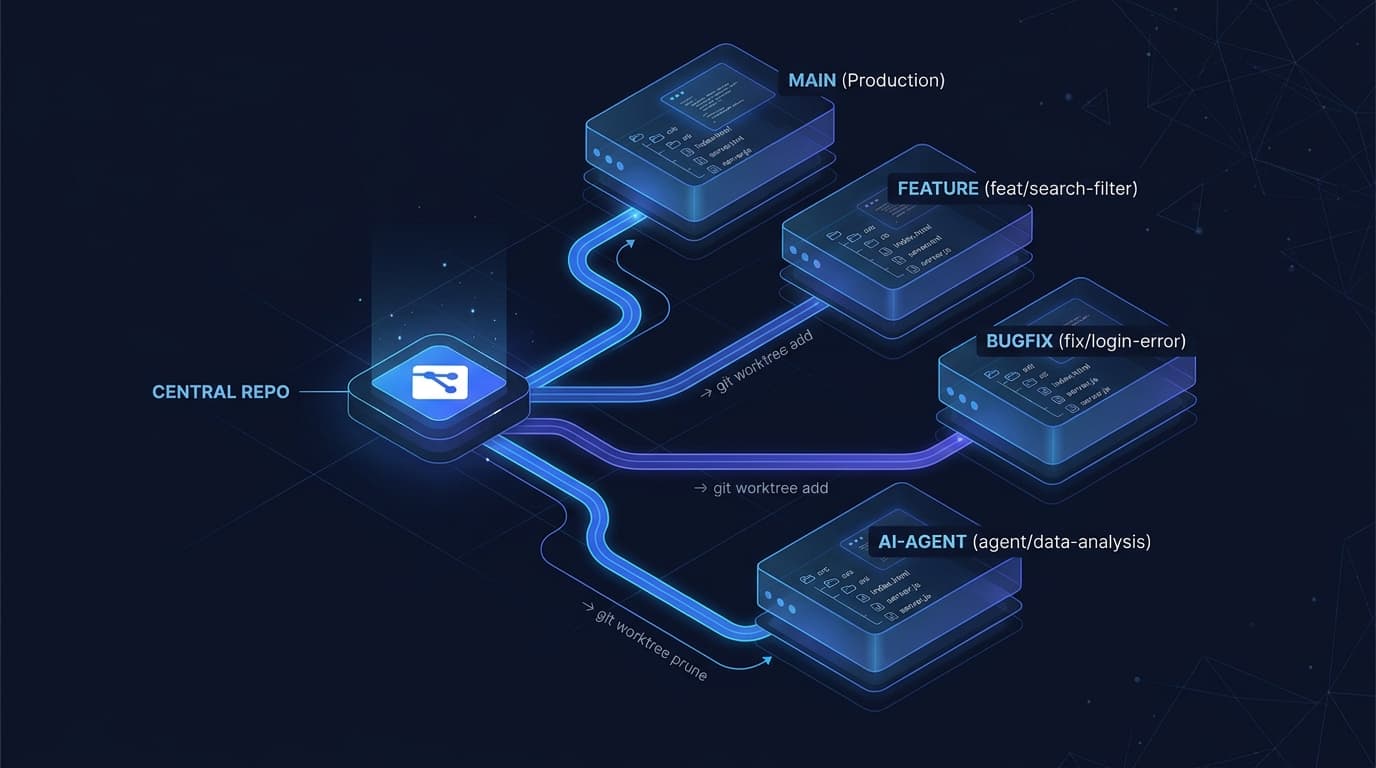
30 Oct 2026
25 min read
You are halfway through a complex refactor on feature/authentication. Your local dev server is running, your debugger is paused at a breakpoint, and you have twelve modified files unstaged.
Suddenly, a high-severity bug alert pings your team channel: checkout sessions are crashing on production (bugfix/payment-error). A junior engineer also needs immediate review on an architectural spike (experiment/new-architecture), while your team's autonomous AI agent is running automated test expansions in the background.
Traditionally, your options were painful: stash your unstaged code, stop your dev server, switch branches, run npm install, and hope your local environment recovers cleanly when you switch back. Or, clone the entire repository into a second folder and wait 15 minutes for hundreds of megabytes of Git history to download again.
Git worktrees solve this dilemma by allowing a single repository to have multiple checked-out branches active across separate physical directories simultaneously.
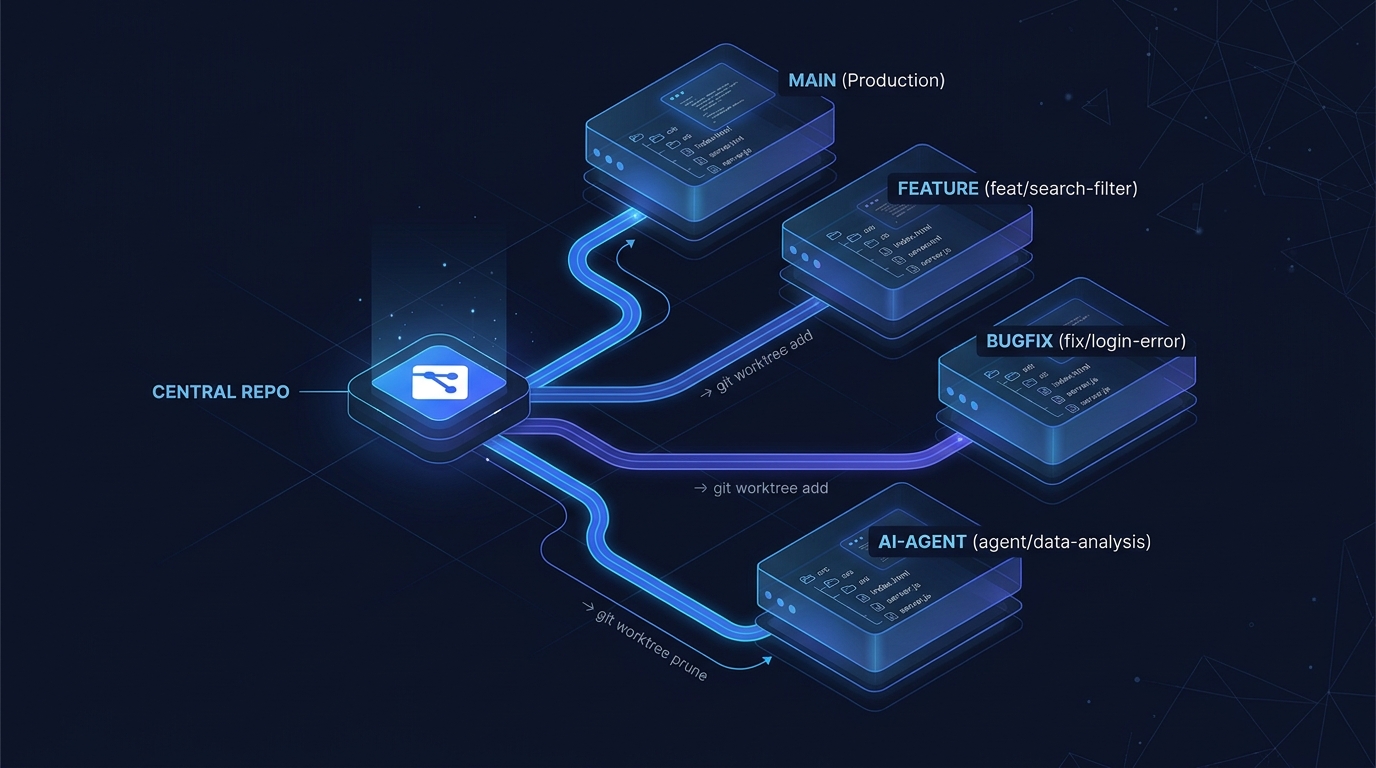
Git worktrees connect multiple parallel working directories to a single central repository object store.
However, as soon as developers spin up their third or fourth worktree, a new problem emerges: worktree sprawl.
Without a planned folder structure and naming convention, your filesystem quickly devolves into chaos:
test1, app-copy, temp, or final-fix2.node_modules or .venv virtual environments.In this guide, you will learn the mental model behind Git worktree storage, explore 8 proven folder structures with executable CLI examples and diagrams, master filesystem-safe naming conventions, and discover how to safely reorganize or automate your worktrees using native Git and WorktreeWise.
Before choosing a directory layout, developers must understand how Git distinguishes branches, worktrees, and physical filesystem directories.
| Concept | What It Is | Where It Lives | Key Responsibility |
|---|---|---|---|
| Git Branch | Lightweight pointer to a commit hash (41 bytes) | .git/refs/heads/<branch> |
Tracks the commit history and lineage. |
| Git Worktree | Administrative binding between a branch & a directory | .git/worktrees/<name>/ |
Manages separate index, HEAD, and staging metadata. |
| Physical Folder | Actual OS filesystem directory on disk | Your local drive (e.g., ~/projects/my-app-auth) |
Holds source files, node_modules, build artifacts, and .env files. |
When you initialize a repository, Git creates the main working tree where .git is a physical directory containing the entire object database (commits, trees, blobs, and tags).
When you create a linked working tree using git worktree add, Git does not duplicate the object database. Instead:
.git file inside that directory pointing back to the main repository:
gitdir: /path/to/main-repo/.git/worktrees/<worktree-name>
.git/worktrees/<worktree-name>/ directory, Git stores a private HEAD, a private staging index, and checkout configuration for that specific worktree.Because every worktree shares the same commit graph and packfiles, commits made in any worktree are immediately accessible in every other worktree without pulling from a remote.
Every team and individual developer has different constraints: number of repositories, Git branching models, ticket tracking requirements, and whether autonomous AI coding agents are involved.
Here are the 8 field-tested strategies for organizing Git worktrees.

Three primary worktree structural topologies: Sibling layout, Repository-centric layout, and Branch-type classification.
The Sibling Folder layout places every worktree directory alongside the main repository in the same parent development folder.
projects/
├── my-app/                 # Main working tree (contains .git/ folder)
├── my-app-feature-auth/    # Linked worktree -> branch: feature/auth
├── my-app-bugfix-payment/  # Linked worktree -> branch: bugfix/payment
└── my-app-experiment/      # Linked worktree -> branch: exp/wasm-test
Run these commands from inside your primary repository (projects/my-app):
# Add a sibling worktree for a new feature branch
git worktree add ../my-app-feature-auth -b feature/auth

# Add a sibling worktree for an urgent fix based on production main
git worktree add ../my-app-bugfix-payment -b bugfix/payment main

# Verify the active worktrees
git worktree list
../my-app-<name>).projects/ directory when you maintain multiple repositories with 3+ worktrees each.my-app-) on every folder to prevent collisions with other projects.The Repository-Centric layout encapsulates all worktrees inside the repository's root boundary, keeping your global workspace clean.
projects/
└── my-app/
    ├── .git/               # Administrative repository metadata
    ├── main/               # Primary working tree (main branch)
    └── worktrees/          # Dedicated container for all linked worktrees
        ├── feature-auth/   # Linked worktree -> branch: feature/auth
        ├── bugfix-login/   # Linked worktree -> branch: bugfix/login
        └── experiment/     # Linked worktree -> branch: experiment/canvas
Important Caution on Existing Repositories: Do not attempt to manually move your main repository's source files into a
main/subfolder using your OS file explorer while Git is active. That breaks Git's internal relative pointers.If you start with a standard repository where the root folder is the working tree, create a
worktrees/directory inside it and addworktrees/to your.gitignoreto avoid Git treating nested worktree files as untracked parent files.
From projects/my-app:
# Ensure worktrees/ is ignored if nested inside the primary tree
echo "worktrees/" >> .gitignore

# Create a dedicated linked worktree inside the worktrees container
git worktree add ./worktrees/feature-auth -b feature/auth

# Create a hotfix worktree
git worktree add ./worktrees/bugfix-login -b bugfix/login main
projects/my-app/ archives all associated worktrees together.projects/ directory tidy regardless of how many worktrees are spawned..gitignore management so the main tree does not attempt to scan sub-worktrees.The Branch-Type layout groups worktrees according to your team's Git branching strategy (e.g., GitFlow or GitHub Flow).
worktrees/
└── my-app/
    ├── features/
    │   ├── authentication/ # Linked worktree -> branch: feature/authentication
    │   └── dashboard-v2/   # Linked worktree -> branch: feature/dashboard-v2
    ├── bugfixes/
    │   └── login-error/    # Linked worktree -> branch: bugfix/login-error
    ├── hotfixes/
    │   └── prod-memory/    # Linked worktree -> branch: hotfix/prod-memory
    └── experiments/
        └── rust-core/      # Linked worktree -> branch: experiment/rust-core
# Create feature branch worktree
git worktree add ../worktrees/my-app/features/authentication -b feature/authentication

# Create bugfix branch worktree
git worktree add ../worktrees/my-app/bugfixes/login-error -b bugfix/login-error

# Create hotfix worktree from tag
git worktree add ../worktrees/my-app/hotfixes/prod-memory -b hotfix/prod-memory v1.2.0
feature/*, bugfix/*, hotfix/*).experiments/).main without type prefixes.The Ticket-Based structure clusters worktrees around specific Jira tickets, GitHub Issues, or Linear identifiers.

Organizing by issue tracker identifier allows developers to test alternative implementations side by side for a single ticket.
worktrees/
└── my-app/
    ├── PROJ-101/
    │   ├── implementation/ # Primary approach (OAuth2 + PKCE)
    │   └── alternative/    # Spike alternative (Session-based JWT)
    ├── PROJ-102/
    │   └── bugfix/         # Payment calculation rounding error
    └── PROJ-103/
        └── testing/        # E2E Cypress regression suite
# Create primary implementation for ticket PROJ-101
git worktree add ../worktrees/my-app/PROJ-101/implementation -b feat/PROJ-101-oauth

# Create an alternative spike to benchmark token payload latency
git worktree add ../worktrees/my-app/PROJ-101/alternative -b spike/PROJ-101-jwt

# Verify both worktrees point to their respective branches
git worktree list
PROJ-101 merges, remove the entire PROJ-101/ folder tree.With the rise of autonomous AI coding agents such as Claude Code, OpenAI Codex, Gemini CLI, Cursor Agent, and OpenCode, managing concurrent agent workspaces has become a critical developer skill.

Dedicated worktrees provide isolated working directories and independent HEAD states for each AI coding agent.
worktrees/
└── my-app/
    ├── human/              # Your active primary working tree
    ├── agents/
    │   ├── claude/         # Claude Code working directory -> branch: ai/claude-auth
    │   ├── codex/          # OpenAI Codex background run -> branch: ai/codex-db-opt
    │   └── gemini/         # Gemini CLI agent subagent -> branch: ai/gemini-tests
    └── review/             # Clean staging workspace to inspect & diff PRs
# Spin up an isolated worktree for Claude Code
git worktree add ../worktrees/my-app/agents/claude -b ai/claude-auth-refactor

# Spin up an isolated worktree for Codex to run test suites
git worktree add ../worktrees/my-app/agents/codex -b ai/codex-perf-optimization

# Spin up an isolated worktree for Gemini CLI
git worktree add ../worktrees/my-app/agents/gemini -b ai/gemini-unit-tests
Security & Concurrency Warning:
- No Automatic Sandbox: Git worktrees isolate filesystem files and Git staging indexes, but they do not provide a process sandbox or security boundary. If an agent executes
rm -rf /or malicious bash scripts in its worktree, it impacts your host OS.- Merge Conflicts Still Apply: While agents operate on separate branches without disturbing your active editor, merging their outputs back into
mainwill still produce Git merge conflicts if they modified overlapping code.- Process Collisions: If two agents attempt to execute
docker compose upor spin up test servers, ensure their.envfiles assign unique host ports (e.g., 5001, 5002).
For a deeper dive into agentic workflows, read our dedicated guide on combining Claude Code with WorktreeWise.
The Lifecycle-Based strategy categorizes worktrees based on their expected duration and volatility.

Categorizing worktrees into permanent, active, and ephemeral tiers eliminates sprawl and prevents accidental deletion.
worktrees/
└── my-app/
    ├── permanent/          # Reference trees (months to years)
    │   ├── main/           # Production baseline
    │   └── develop/        # Staging integration
    ├── active/             # Current sprint features (days to weeks)
    │   ├── feature-auth/
    │   └── bugfix-42/
    └── temporary/          # Ephemeral review & spikes (minutes to hours)
        ├── pr-review-912/
        └── spike-wasm/
git worktree lock --reason "Production reference" so Git will refuse to remove or prune them accidentally.git worktree remove without hesitation.# Lock permanent main worktree
git worktree lock ../worktrees/my-app/permanent/main --reason "Production reference"
# Safely remove a temporary review worktree once finished
git worktree remove ../worktrees/my-app/temporary/pr-review-912
# Prune stale administrative metadata
git worktree prune --verbose
In the Bare Repository layout, the central repository is cloned with the --bare flag. A bare repository contains only Git metadata (no working tree at the root level). All working code lives in explicitly linked worktrees.
projects/
└── my-app/
    ├── .bare/              # The bare repository (stores Git objects & refs)
    ├── main/               # Linked worktree -> main branch
    ├── develop/            # Linked worktree -> develop branch
    └── feature-auth/       # Linked worktree -> feature/auth
# 1. Clone a bare repository into a hidden folder .bare
git clone --bare git@github.com:org/my-app.git .bare

# 2. Configure Git to fetch all remote branch heads properly
cd .bare
git config remote.origin.fetch "+refs/heads/*:refs/remotes/origin/*"

# 3. Add your primary main worktree
git worktree add ../main main

# 4. Add your feature worktree
git worktree add ../feature-auth -b feature/auth
main is treated like any other branch, rather than occupying a "special" root directory.remote.origin.fetch) or git fetch will not track remote branches properly.In microservice architectures, enterprise applications, or distributed full-stack stacks, a single user story often touches multiple repositories simultaneously (e.g., frontend Next.js, backend Go API, and an infrastructure Terraform repo).
The Multi-Repository Task Workspace groups related worktrees from different repositories inside one shared task directory.
workspaces/
└── AUTH-101-OAUTH/
    ├── frontend/       # Worktree from github.com/org/web-app (feat/auth-ui)
    ├── backend/        # Worktree from github.com/org/api-service (feat/auth-api)
    └── terraform/      # Worktree from github.com/org/infra (feat/cognito)
# Create shared workspace directory
mkdir -p ~/workspaces/AUTH-101-OAUTH

# Link frontend worktree from web-app repository
cd ~/projects/web-app
git worktree add ~/workspaces/AUTH-101-OAUTH/frontend -b feat/auth-ui

# Link backend worktree from api-service repository
cd ~/projects/api-service
git worktree add ~/workspaces/AUTH-101-OAUTH/backend -b feat/auth-api

# Open the entire multi-repo workspace in your editor
code ~/workspaces/AUTH-101-OAUTH
Do not confuse this with a Monorepo: In a monorepo, a single Git repository contains multiple packages (often using tools like Turborepo or Nx). In this multi-repo strategy, you are linking worktrees from distinct independent repositories into a single folder so you can open them in one IDE window or run a multi-container Docker Compose environment.
A disciplined folder structure is only as effective as the names you assign to individual worktree directories.
Unlike branch names which live strictly inside Git refs, worktree folder names live on your physical filesystem. Bad names lead to:
temp2 tells you nothing about which project, branch, or ticket is inside.:) or exceed MAX_PATH limits.| Ineffective Name | Why It Fails | Effective Name | Why It Succeeds |
|---|---|---|---|
test, temp |
Zero project, ticket, or branch context. | web-app__feat-auth |
Instantly identifies repo and feature. |
feature/auth/login |
Creates unwanted nested subfolders on disk. | feature-auth-login |
Flat, filesystem-safe directory name. |
my-app-fix |
Which fix? Will collide on the next bug. | my-app__bugfix-pay-timeout |
Self-documenting, collision-free. |
FEAT-1092-user-profile-avatar-upload-modal-redesign-v2 |
Excessively long; risks hitting OS path limits. | FEAT-1092-avatar-redesign |
Concise, readable, adheres to ticket. |
/): Branches often contain slashes (e.g., feature/login). In Unix and Windows paths, a slash represents a directory separator. Replace / with hyphens (-) or double underscores (__) to avoid unwanted nested subdirectories unless you explicitly want them.:, *, ?, ", <, >, or | which are illegal on Windows filesystems.web-app__auth checked out to branch feature/jira-101-oauth-flow.Naming and organizing worktree folders manually through the command line is repetitive and prone to typographical errors.
WorktreeWise Naming Patterns automate this process completely by converting repository metadata and branch names into clean, standardized directory structures on disk.

The WorktreeWise naming pattern engine evaluates placeholders and automatically sanitizes branch names into safe directories.
WorktreeWise currently supports two verified core placeholders:
{repo} — The primary repository name.{branch} — The sanitized branch or tag name (slashes and illegal filesystem characters are automatically converted into safe separators).| Preset Pattern | Generated Directory Example | Primary Benefit |
|---|---|---|
{repo}__wt__{branch} (Default) |
my-project__wt__feature-auth |
Guarantees zero folder collisions across multiple repos; distinct visual separator. |
{repo}__{branch} |
my-project__feature-auth |
Compact and readable while keeping repository attribution clear. |
{repo}-wt-{branch} |
my-project-wt-feature-auth |
Strict kebab-case naming favored by Linux developers and command-line scripts. |
wt__{repo}__{branch} |
wt__my-project__feature-auth |
Groups all worktrees together alphabetically at the top of file explorers. |
Configuring your global or repository-level naming pattern takes less than thirty seconds:
{repo} and {branch}.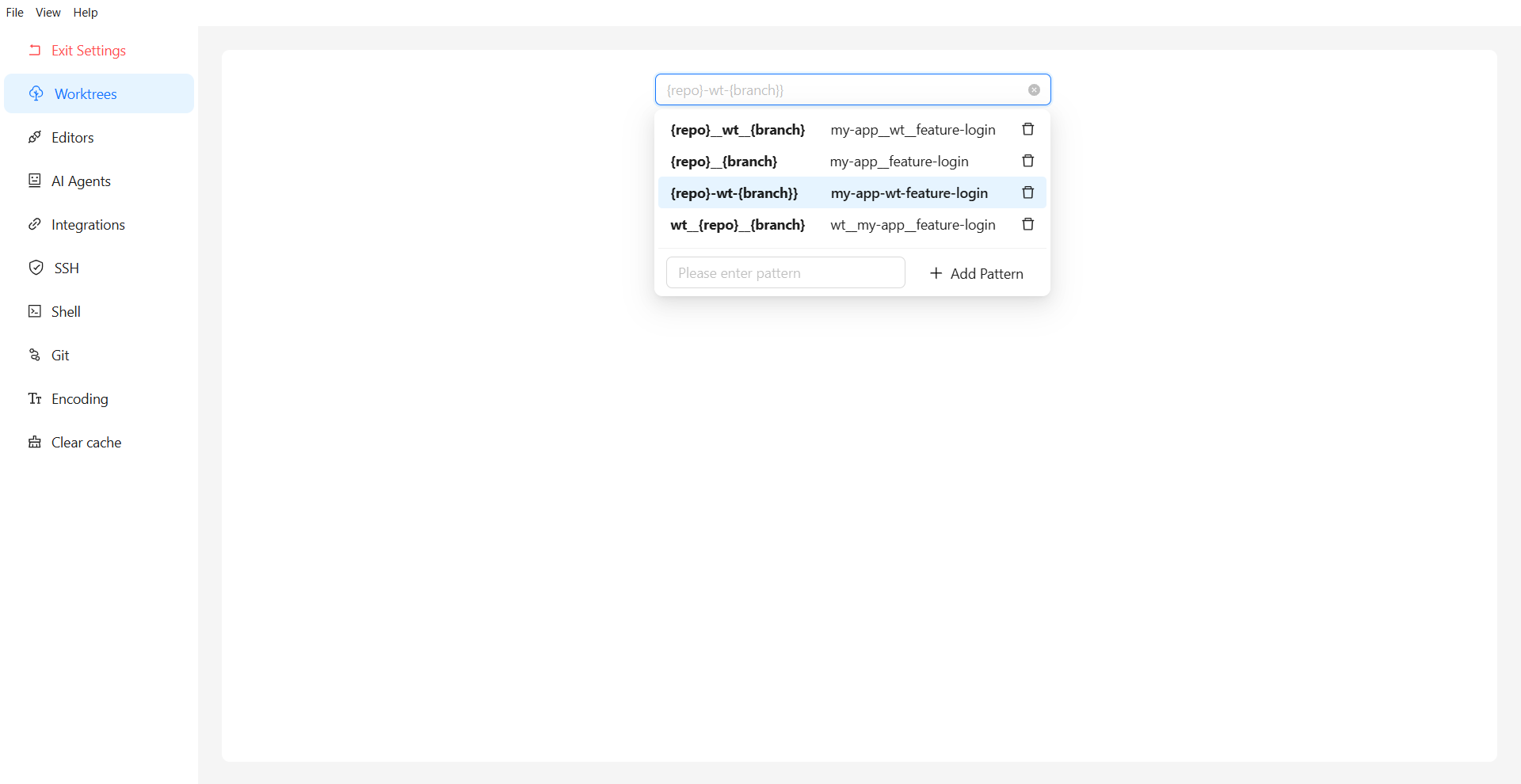
WorktreeWise settings allow developers to define global or repository-specific naming patterns.
When you click Create Worktree from HEAD, a branch, or a commit, WorktreeWise automatically computes the destination folder path using your chosen pattern:
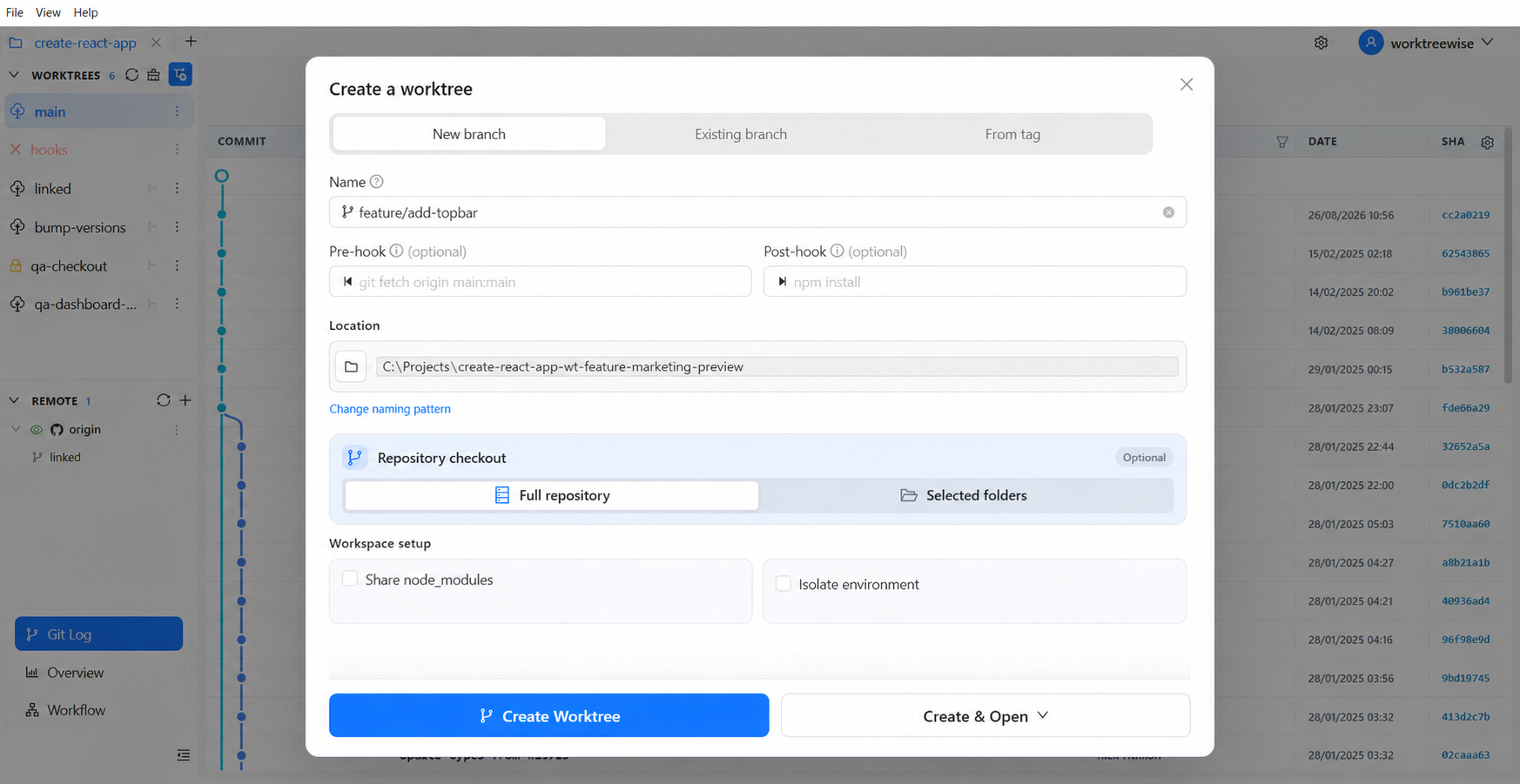
The destination path is automatically populated based on your naming pattern before creation.
If an existing worktree was created with an older naming pattern or an ad-hoc name, you can update it directly from the UI without breaking Git metadata:
git worktree move command while preserving your editor configs, uncommitted files, and Git tracking.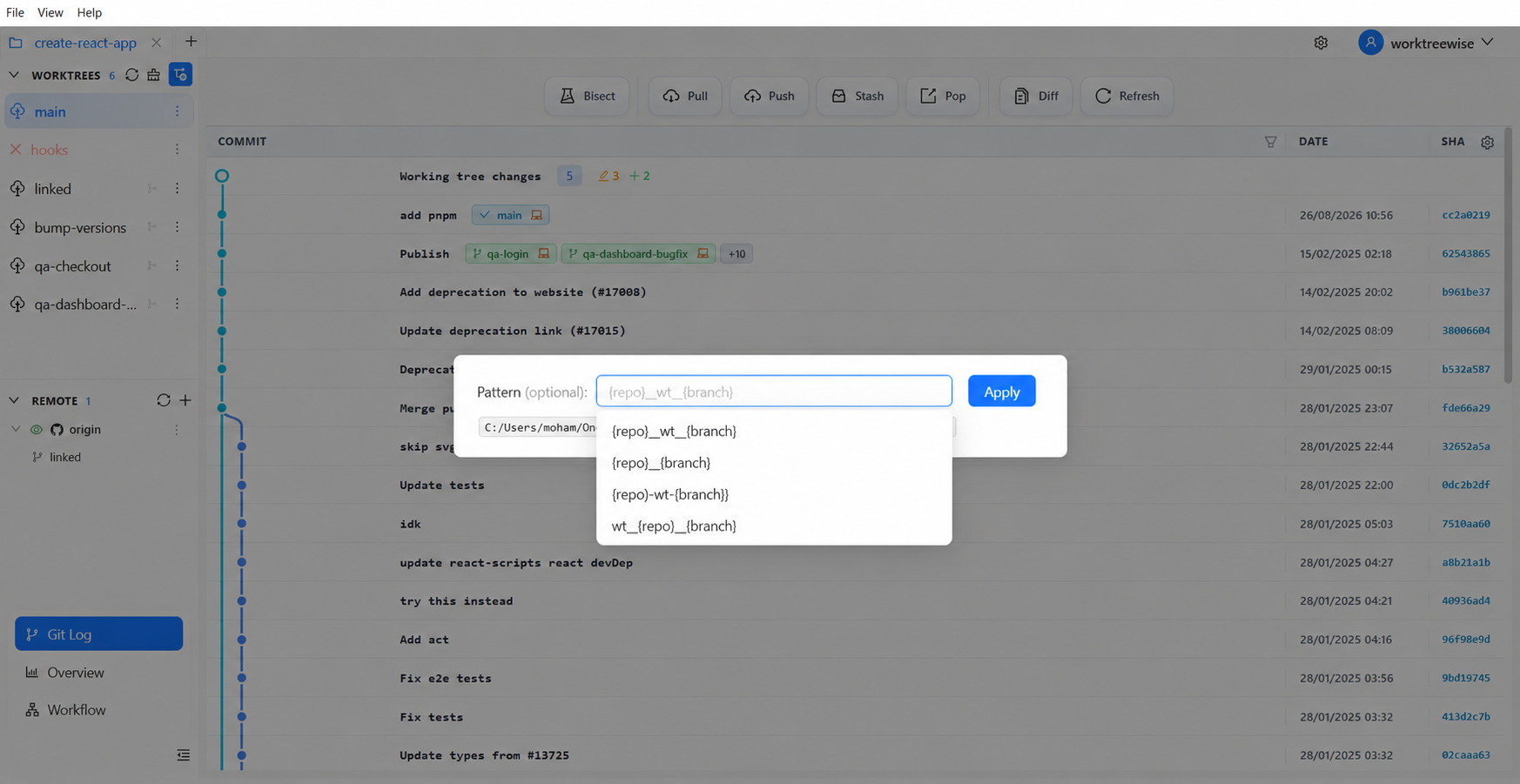
Update naming patterns on existing worktrees with one click.
UI Name vs. Physical Disk Name: WorktreeWise displays clean branch and commit labels in the application workspace, while applying the strict naming pattern to the physical directory on disk. This gives you the best of both worlds: clean visual navigation and organized filesystems.
Eliminate folder sprawl, prevent path typos, and enforce consistent directory naming across your entire development team.
Try WorktreeWise Free or explore the official Naming Pattern Documentation.
What if you already have five messy worktrees scattered across your desktop and project directories?
Do not drag and drop worktree folders in macOS Finder or Windows Explorer! Git stores the absolute path to each linked worktree inside .git/worktrees/<name>/gitdir. Renaming a folder directly breaks that pointer, causing Git to throw:
fatal: '<path>' is not a working tree

Organizing existing worktrees restores predictability and eliminates orphaned Git metadata.
Run git worktree list to see every linked worktree, its commit hash, and its checked-out branch:
git worktree list
For programmatic parsing in shell scripts, use the machine-readable porcelain format:
git worktree list --porcelain
Output:
worktree /Users/developer/projects/my-app
HEAD 8f3a1b0293847291a
branch refs/heads/main

worktree /Users/developer/projects/temp-folder
HEAD 4c2e9a8b7c6d5e4f3
branch refs/heads/feature/auth
git worktree moveTo rename or move an existing worktree directory without corrupting Git metadata, use git worktree move:
# Safely move from messy path to structured path
git worktree move ../temp-folder ../worktrees/my-app/features/authentication
This updates both the physical folder and Git's internal pointers in .git/worktrees/.
Branch Rename vs. Worktree Move:
git worktree moverenames the filesystem directory. It does not rename the Git branch. If you also want to rename the branch, navigate into that worktree and rungit branch -m <new-branch-name>. For an end-to-end breakdown, read How to Rename a Git Worktree.
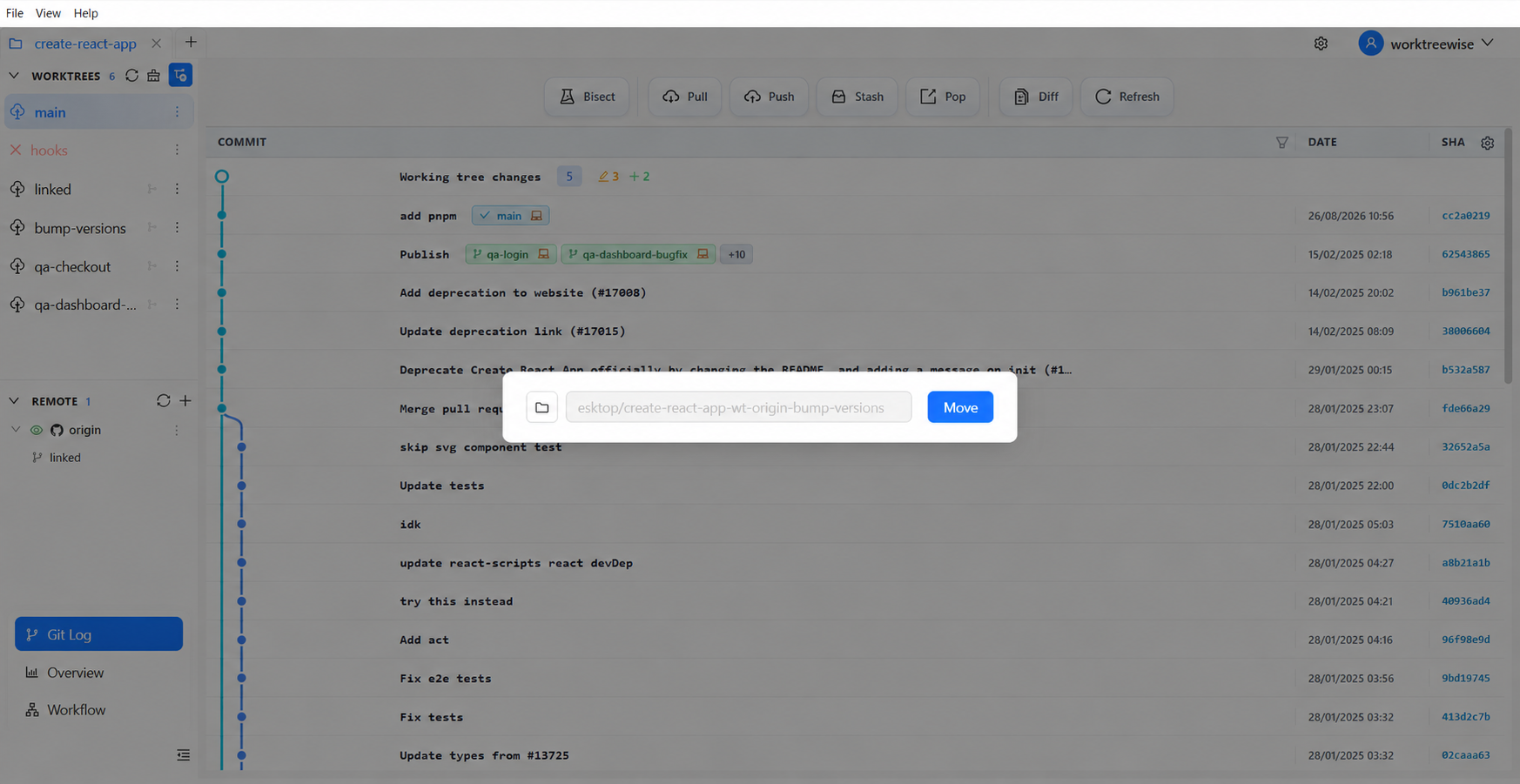
WorktreeWise provides a visual move dialog that checks path validity before moving.
If someone on your team did move a directory manually, Git provides the repair command to reconnect the administrative pointers:
# Run from the main repository, specifying the new path of the moved worktree
git worktree repair ../worktrees/my-app/features/authentication
Learn more in our interactive tutorial on git worktree repair.
When a feature branch is merged, clean up its working directory:
# Safely remove the worktree folder and its Git metadata
git worktree remove ../worktrees/my-app/features/authentication

# Prune administrative metadata for deleted directories
git worktree prune --verbose
git status inside each worktree before moving or removing. If you have uncommitted changes, git worktree remove will refuse to delete the directory unless forced with -f.git worktree lock), unlock it first using git worktree unlock <path>.| Organization Strategy | Best For | Setup Complexity | Scalability | Main Advantage | Main Limitation |
|---|---|---|---|---|---|
| 1. Sibling Folder | Solo developers, 1–2 repos | Very Low | Low | Simple relative paths (../) |
Clutters parent development folder |
| 2. Repo-Centric | Multi-repo developers | Low | Medium | Self-contained per project | Requires .gitignore for subfolder |
| 3. Branch-Type | GitFlow teams | Medium | High | Mirrors branch taxonomy | Slightly deeper directory nesting |
| 4. Ticket-Based | Enterprise teams (Jira) | Medium | High | Side-by-side spikes per ticket | Requires strict issue ID tracking |
| 5. AI Agent-Based | Agentic AI engineers | Medium | High | Isolates agents from active editor | No security sandbox or auto conflict fix |
| 6. Lifecycle-Based | Heavy PR reviewers | Low | High | Guilt-free cleanup of temporary tier | Requires active pruning discipline |
| 7. Bare Repository | Power users & CI/CD | High | Very High | All branches treated symmetrically | Requires bare-clone initial setup |
| 8. Multi-Repo Workspace | Full-stack microservices | High | High | Coordinates multiple repos per task | Higher cognitive overhead across repos |
Avoid these eight frequent pitfalls when organizing your Git worktrees:
Never name a worktree test, temp, or final. Use a structured naming pattern like {repo}__{branch} so every directory describes its purpose.
Deleting a worktree folder using rm -rf or your OS trash bin leaves orphaned metadata inside .git/worktrees/. Always use git worktree remove <path> or run git worktree prune afterwards.
Git prohibits two worktrees from checking out the same branch simultaneously to prevent index corruption:
fatal: 'feature/auth' is already checked out at '/path/to/worktree'
If you need to experiment on the same branch, create a new branch or worktree off that commit.
Git worktrees isolate code files, but they share your computer's network interface. If two worktrees both attempt to run npm run dev on port 3000, the second will crash. Configure unique .env.local files with distinct ports (e.g., PORT=3001).
.git/worktrees Metadata DirectlyNever manually alter files inside .git/worktrees/. Use git worktree move, git worktree lock, and git worktree repair to let Git update its internal pointers safely.
Worktrees share the .git repository, but each worktree needs its own dependencies installed (npm install, pip install, cargo build). While this uses more disk space, it provides complete build isolation between branches.
{repo}__wt__{branch} across all projects.worktrees/) rather than scattering them on your Desktop.git worktree lock to prevent accidental removal..env file.git worktree prune weekly to clean up stale references.Managing dozens of worktrees across multiple repositories via the CLI requires remembering complex commands, manual directory paths, and constant pruning.
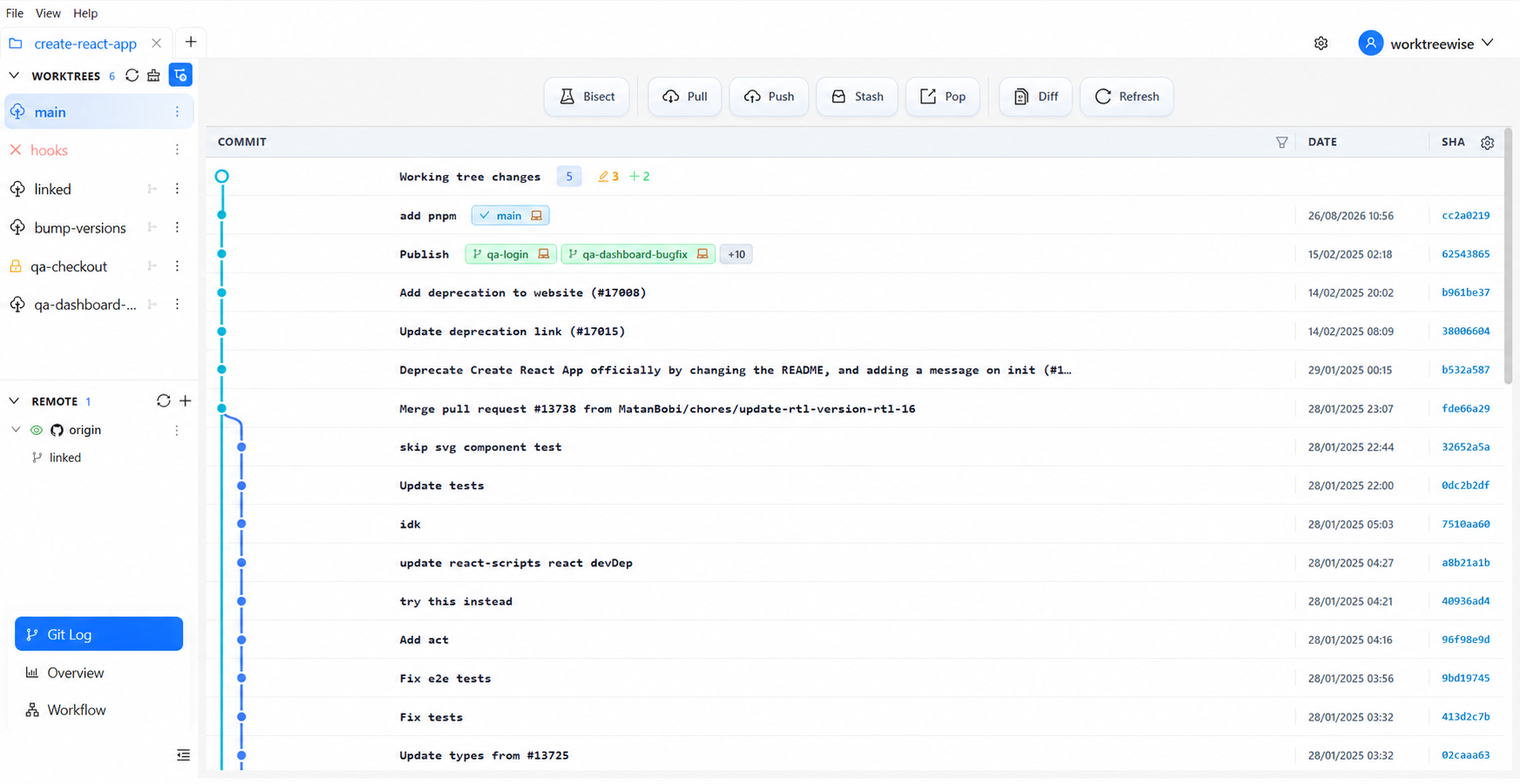
WorktreeWise gives every active branch a visible, manageable workspace with one-click lifecycle actions.
WorktreeWise is the dedicated cross-platform desktop application built specifically for Git worktree workflows:
{repo} and {branch} placeholders.Download WorktreeWise for Windows, macOS, or Linux. Enjoy a full-feature 10-day free trial with no credit card required.
The most reliable location is in a dedicated worktrees/ directory either inside your repository root (properly ignored in .gitignore) or in a sibling directory (../worktrees/my-app/). Avoid placing worktrees in cloud-synced folders (Dropbox, OneDrive, iCloud) because background sync daemons frequently lock Git index files.
For individual developers, the Sibling Layout or Repo-Centric Layout is best because it requires minimal overhead. For engineering teams using Jira, the Ticket-Based Layout (worktrees/my-app/PROJ-101/) is the most scalable.
Use a structured, filesystem-safe convention that includes both the repository name and the sanitized branch name. The WorktreeWise default preset {repo}__wt__{branch} (e.g., my-app__wt__feature-login) is ideal because it avoids path collisions across multiple repositories.
Yes. Grouping worktrees by ticket key (e.g., worktrees/PROJ-101/implementation and worktrees/PROJ-101/alternative) is an industry best practice. It allows you to run competing implementations side by side and cleans up easily once the ticket merges.
Yes. Giving each AI coding agent (such as Claude Code, OpenAI Codex, or Gemini CLI) its own dedicated worktree allows agents to edit files, run test suites, and execute builds in parallel without overwriting your active editor. However, worktrees do not provide security sandboxing or eliminate merge conflicts when merging to main.
Yes, but always use git worktree move <source> <destination> rather than your operating system's file manager. If a directory was moved manually, run git worktree repair <new-path> from the main repository to reconnect Git's internal pointers.
No. Git does not delete physical worktree folders automatically. If you delete a folder manually, running git worktree prune cleans up Git's internal administrative references, but you should always use git worktree remove <path> to delete worktrees cleanly.
WorktreeWise features a built-in Worktree Naming Pattern engine. In Settings → Worktrees, you select a preset or configure a custom rule using {repo} and {branch} placeholders. WorktreeWise automatically sanitizes illegal characters and generates predictable folder paths every time you create a worktree.
AMMACH MOHAMED AMINE

AMMACH MOHAMED AMINE

AMMACH MOHAMED AMINE
Compare the best Git worktree GUI tools in 2026, including WorktreeWise, GitKraken, Tower, and JetBrains IDEs, with screenshots and practical recommendations.
Read articleLearn how to use git worktree remove safely and effectively. Practical examples, common mistakes, and best practices for managing multiple worktrees.
Read articleLearn how to use git worktree prune to remove stale worktree references, fix broken states, and maintain a clean and efficient Git workflow.
Read article