

Best Git Worktree GUI Tools (2026 Comparison)
Discover the best Git worktree GUI tools in 2026. Compare features, workflows, and productivity gains for modern developers using Git worktrees.
Read article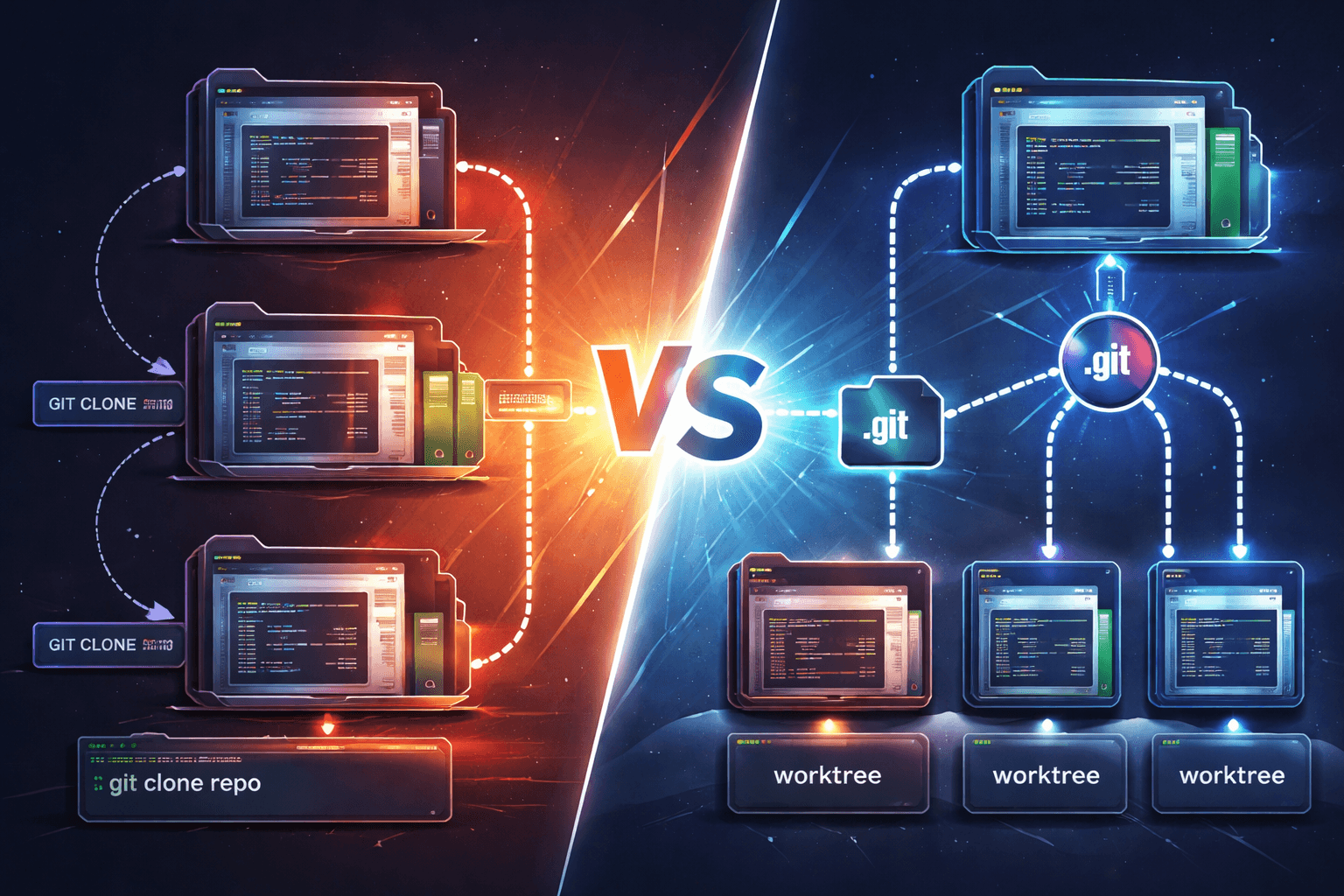
15 Mar 2026
6 min read
If you’ve ever found yourself cloning the same repository multiple times just to work on different branches, you’re not alone.
It’s a common pattern:
At first, it feels organized. But quickly, it becomes messy, slow, and inefficient.
This is exactly where the git worktree vs clone debate becomes important.
Both approaches let you work on multiple branches in parallel but they do it in fundamentally different ways, with very different trade-offs.
In this guide, we’ll break down:
When you run:
git clone https://github.com/user/repo.git
Git creates a completely new copy of the repository.
This includes:
If you clone the same repo twice:
git clone repo my-project-main
git clone repo my-project-feature
You now have two independent repositories.
Each clone:
git worktree allows you to create multiple working directories tied to a single Git repository.
Instead of duplicating everything, Git shares the same .git data.
git clone repo my-project
cd my-project

git worktree add ../my-project-feature feature-branch
Now you have:
my-project/ → main branchmy-project-feature/ → feature-branchBut both directories:
A worktree is:
Use cloning when:
Example:
git clone https://github.com/user/repo.git
cd repo
git checkout experimental-reset
This is useful when:
Use worktrees when:
Example workflow:
git worktree add ../feature-login feature/login
git worktree add ../bugfix-auth bugfix/auth
Now you can:
Let’s say you're working on:
You might do:
git clone repo project-main
git clone repo project-payment
git clone repo project-login
git worktree add ../payment feature/payment
git worktree add ../login bugfix/login
Many developers don’t know git worktree exists.
Result:
Worktrees don’t auto-clean.
git worktree remove ../feature-login
Or prune:
git worktree prune
Messy structure:
../test1
../test2
../final-version
Better:
../wt-feature-login
../wt-bugfix-auth
Git prevents this for safety.
You cannot attach the same branch twice.
git worktree add ../wt-feature-login feature/login
Store them in a dedicated folder:
git worktree prune
Delete when done:
git worktree remove ../wt-feature-login
Use clones only when necessary.
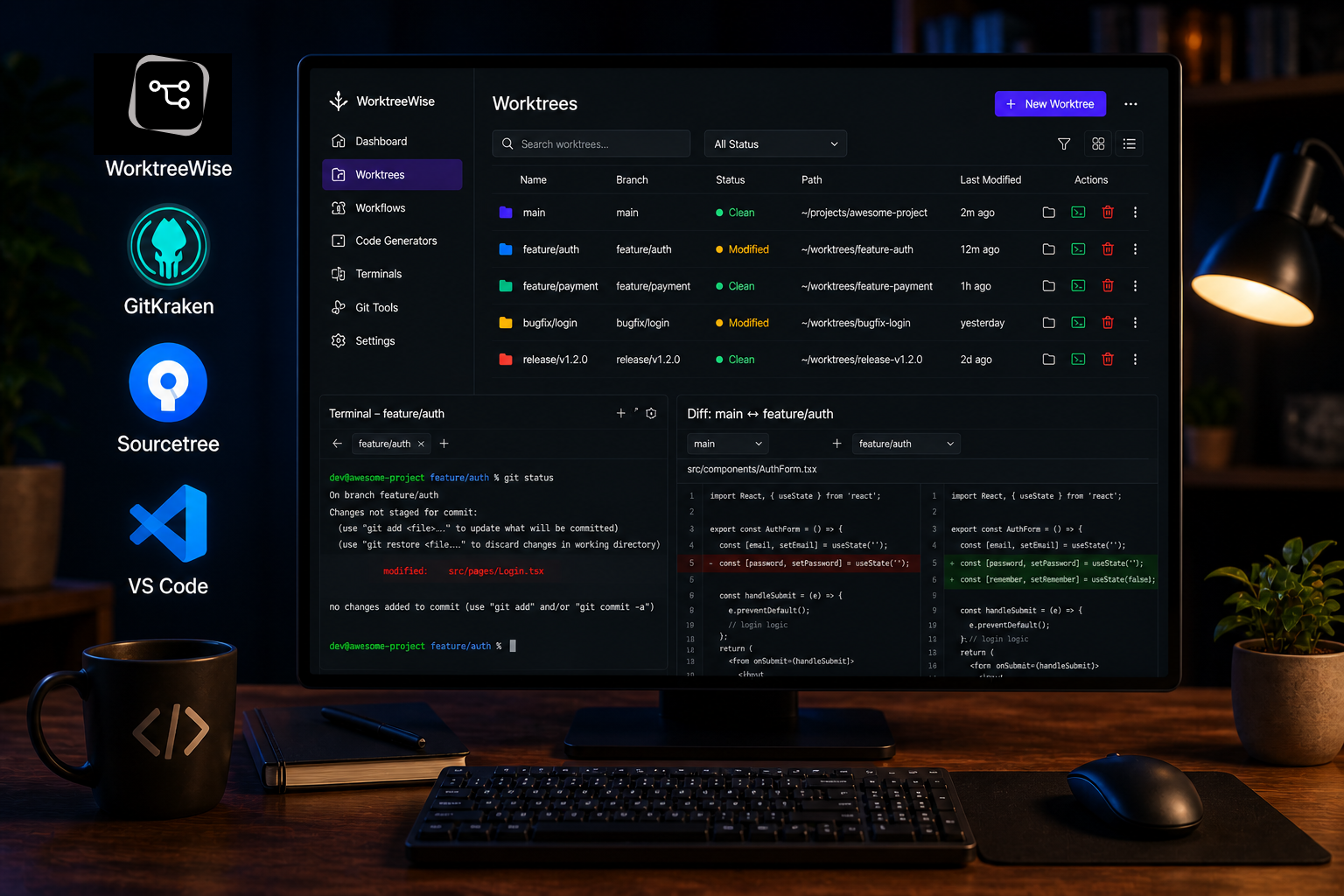
Managing worktrees manually is powerful but not always convenient.
That’s where WorktreeWise comes in.
Instead of CLI commands, you can:
Learn more:
https://docs.worktreewise.com/git-worktrees/create
WorktreeWise helps enforce naming conventions and structure:
Learn more:
https://docs.worktreewise.com/git-worktrees/naming-pattern
Run commands across multiple worktrees:
Learn more:
https://docs.worktreewise.com/workflows/play
Open worktrees directly in:
Without losing configuration.
Learn more:
https://docs.worktreewise.com/integrations/ide
Each worktree gets its own terminal:
Learn more:
https://docs.worktreewise.com/integrations/terminal
Compare:
Without complex CLI commands.
Learn more:
https://docs.worktreewise.com/git-operations/diff
WorktreeWise detects invalid worktrees and cleans them up.
Learn more:
https://docs.worktreewise.com/git-worktrees/prune
Worktrees share the repository's Git object database and references, but each worktree has its own checked-out files and index. Clones have separate Git databases and can use different remotes or Git configuration.
Remember that neither approach automatically isolates everything outside Git:
Choose a clone when you need an independent repository, remote configuration, credentials, or a disposable copy that can move separately. Choose a worktree when you want fast parallel work on branches of the same local repository.
For occasional use, native git worktree commands may be all you need. For
multiple active environments, WorktreeWise adds visual organization, naming,
IDE launching, and repeatable workflows without changing Git's underlying
model.
See how to create a visual worktree or start a free trial.
The git worktree vs clone choice comes down to intent.
Use git clone when you need isolation.
Use git worktree when you need speed, efficiency, and parallel development.
For most modern development workflows:
Worktrees are the better default.
They reduce duplication, improve performance, and make working across multiple branches seamless.
And when combined with tools like WorktreeWise, they unlock a completely new level of productivity.
AMMACH MOHAMED AMINE

AMMACH MOHAMED AMINE
AMMACH MOHAMED AMINE
Discover the best Git worktree GUI tools in 2026. Compare features, workflows, and productivity gains for modern developers using Git worktrees.
Read articleLearn how to use git worktree remove safely and effectively. Practical examples, common mistakes, and best practices for managing multiple worktrees.
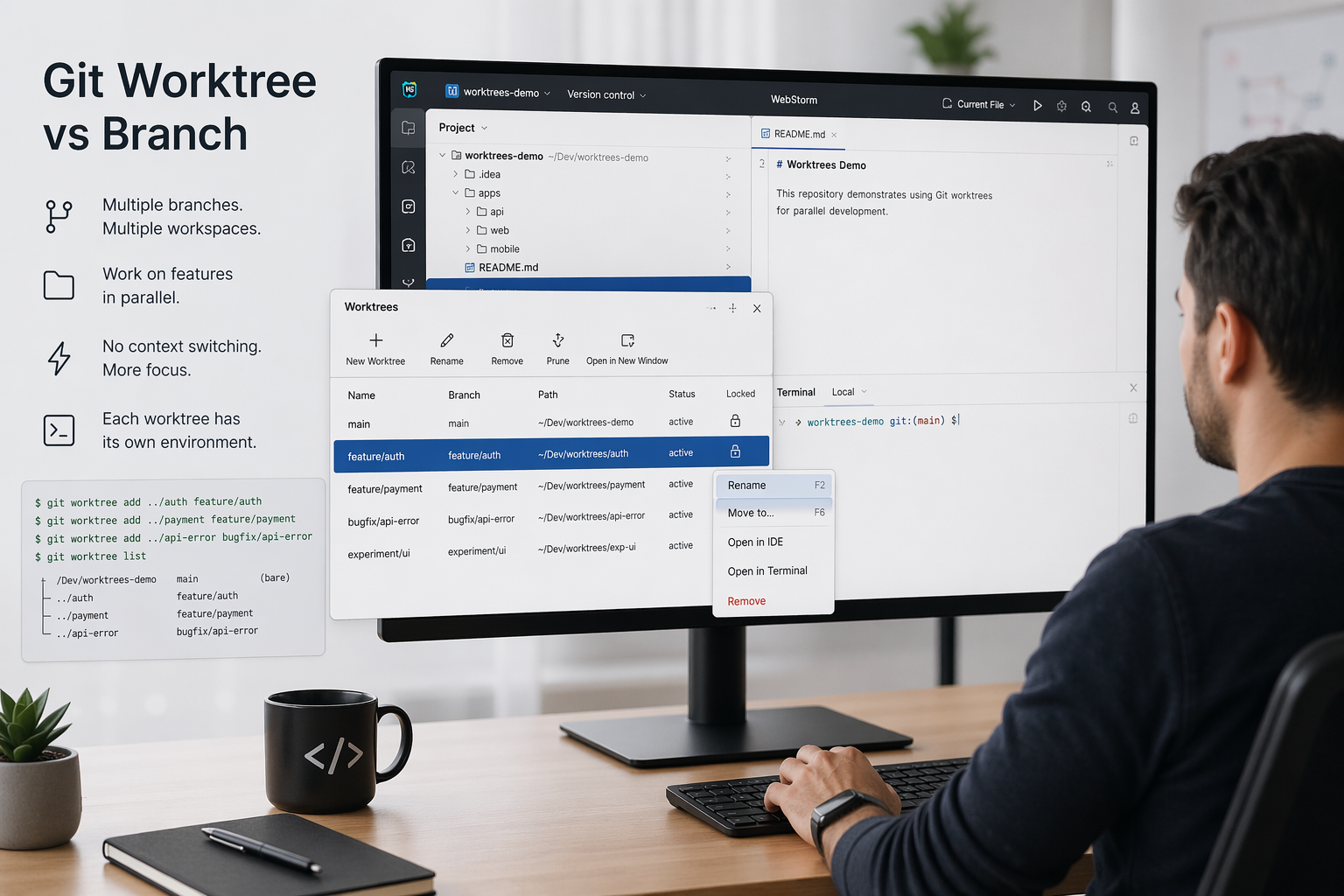
Read articleUnderstand the real difference between git worktree and branch, when to use each, and how to optimize your workflow for parallel development.
Read article