

Worktree vs switch
TL;DR: The 30-Second Summary
`git switch` moves the HEAD pointer in your current directory from one branch to another. `git worktree add` creates a second directory so both branches remain checked out at the same time. Use `switch` for quick linear progress; use `worktree` for multitasking.
The Real-Life Scenario
“A developer wonders: 'Git introduced `git switch` in recent versions. Does that replace Git worktrees?' No—they solve fundamentally different problems.”
When Git 2.23 introduced `git switch`, many developers wondered whether it made Git worktrees obsolete. In reality, `git switch` and `git worktree` are complementary tools for different development scenarios.
Pointer Switching vs Directory Concurrency
`git switch` is an in-place operation. It moves the `HEAD` pointer of your current working directory. `git worktree add` provisions an additional working directory with its own independent `HEAD`.
What you see in the terminal:
$ git switch feature-b
# Your current folder now has feature-b. Feature-a is closed!

$ git worktree add ../feature-b feature-b
# You now have BOTH feature-a AND feature-b open simultaneously!Under the Hood: Git Plumbing & Architecture
`git switch` updates `.git/HEAD`. `git worktree add` creates a new directory in `.git/worktrees/<name>/` with its own private `HEAD`.
Quick Command Recipes
Copy and adapt these commands directly in your terminal:
git switch (linear, single directory)
Changes current directory to feature-b.
git switch feature-bgit worktree (concurrent, parallel directories)
Opens feature-b in parallel while keeping current directory on feature-a.
git worktree add ../feature-b feature-bStep-by-Step Practical Walkthrough
Follow these verified steps to safely resolve the issue and guarantee that your filesystem and Git references are in sync.
When to use `git switch`
Use `git switch` when you are completely finished with your current task and want to move your current folder to a new branch.
When to use `git worktree`
Use `git worktree` when you want to keep your current feature open (with running servers, open IDE tabs, and uncommitted edits) while working on another branch.
Comparative Feature Matrix
| Action / Property | git switch | git worktree add |
|---|---|---|
| Directory Count | Always 1 directory | N parallel directories |
| Simultaneous Running Servers | No (only 1 branch active) | Yes (run servers on different ports) |
| Stashing Required? | Yes (if uncommitted edits exist) | No (leave edits untouched) |
| Best Used For | Linear progression on 1 task | Multitasking, PR reviews, hotfixes |
Edge Cases & Advanced Scenarios
Using `git switch` inside a secondary worktree
You CAN run `git switch` inside a worktree to change that specific worktree's branch, as long as the branch isn't checked out elsewhere.
Common Mistakes to Avoid
❌ Mistake: Switching branches in a worktree currently running an AI agent
Why it causes trouble: Confuses the agent and causes files to be written to the wrong branch.
What to do instead: Keep worktrees dedicated to specific branches.
Verification Checklist
- ✓`git switch` updates `HEAD` in current directory
- ✓`git worktree add` creates a second directory with its own `HEAD`
Senior Engineering Tips
- ★Think of `git switch` as channel surfing on one TV, and Git worktrees as having multiple TVs on the wall.
Key Takeaways
- 01.`git switch` replaces current directory contents.
- 02.`git worktree add` creates an additional directory for parallel work.
- 03.Use `switch` for linear tasks, `worktree` for multitasking.
How WorktreeWise Solves This Visually
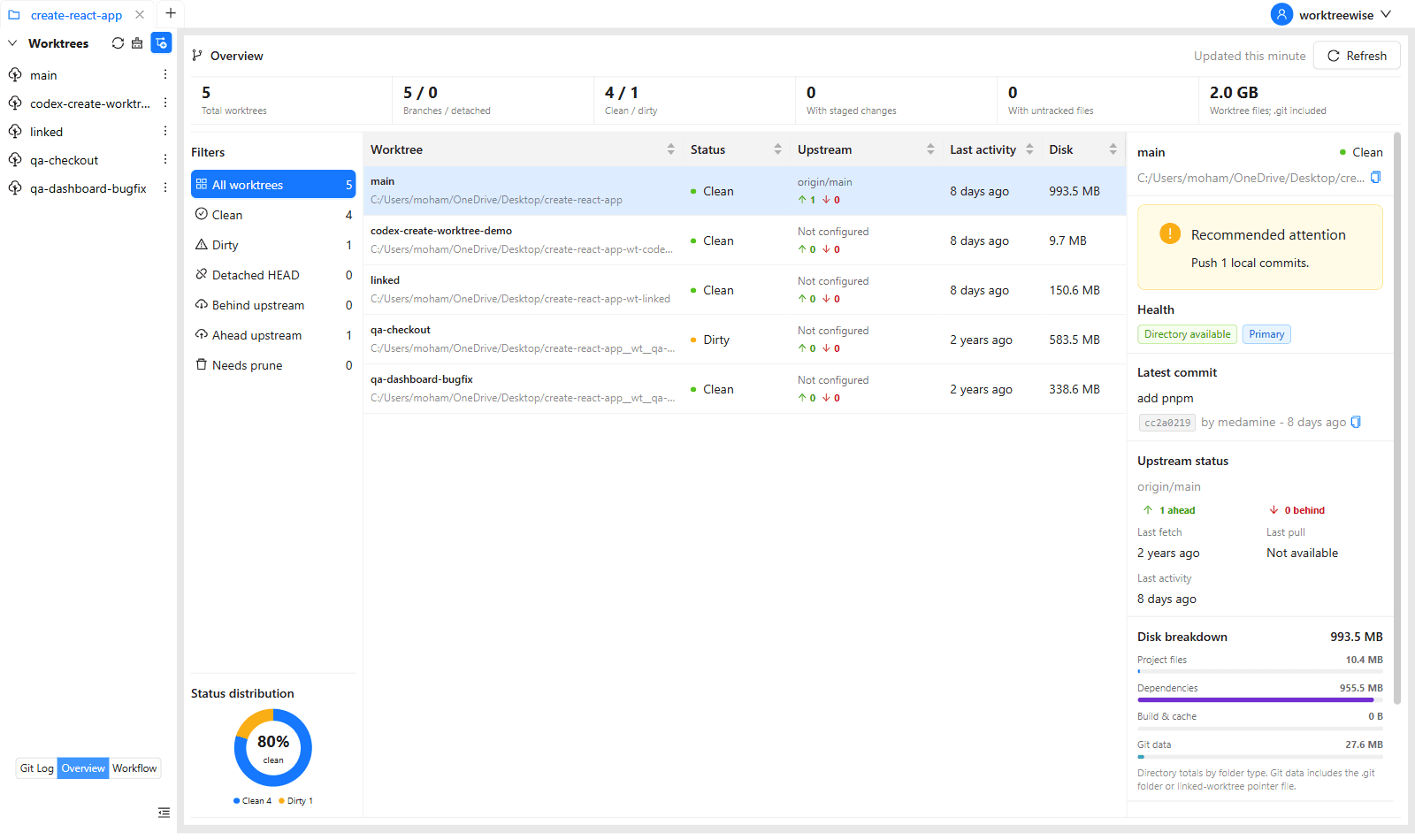
WorktreeWise eliminates the manual friction and mental overhead of CLI flags. It displays real-time branch states, uncommitted modifications, active terminals, and lock statuses across all worktrees on a single visual dashboard.
WorktreeWise Engineering Publication
Written and curated by the core WorktreeWise team. We build developer tools that turn Git worktrees, workflows, and parallel AI coding agents into second nature.