

Worktree vs dev containers
TL;DR: The 30-Second Summary
VS Code Dev Containers package development tools into a reproducible Docker environment. Git Worktrees provide instantaneous parallel branch directories. Learn how to run Dev Containers *inside* Git worktrees for the best of both worlds.
The Real-Life Scenario
“A team standardizes on `.devcontainer` for uniform developer tooling. Developers want to work on multiple features at once without spinning down their running dev containers.”
VS Code Dev Containers have revolutionized onboarding by providing reproducible containerized toolchains. Combining Dev Containers with Git worktrees gives you multi-branch parallel development with 100% reproducible environments.
The Single-Container Concurrency Limit
Opening a Dev Container attaches VS Code to one directory. If you switch branches inside the container, you face the same stashing and rebuilding bottlenecks as a local checkout.
What you see in the terminal:
Dev Container: Rebuilding 14 packages after branch switch...Under the Hood: Git Plumbing & Architecture
By creating a Git worktree first and then opening that worktree in a Dev Container (`Reopen in Container`), you get an independent container instance attached to that specific branch.
Quick Command Recipes
Copy and adapt these commands directly in your terminal:
Create worktree and open in Dev Container
Spawns an independent containerized environment for the worktree.
git worktree add ../wt-feature feat/branch main
code ../wt-feature
# In VS Code: Press F1 -> 'Dev Containers: Reopen in Container'Step-by-Step Practical Walkthrough
Follow these verified steps to safely resolve the issue and guarantee that your filesystem and Git references are in sync.
Create worktree on host machine
Use Git worktree on your host OS.
git worktree add ../wt-feature feat/branch mainOpen worktree in VS Code
Open the worktree folder.
code ../wt-featureReopen in Dev Container
VS Code spins up an isolated container for this specific worktree.
Comparative Feature Matrix
| Feature | Dev Containers | Git Worktrees |
|---|---|---|
| Primary Goal | Toolchain reproducibility | Branch concurrency |
| Execution Environment | Inside Docker container | Host OS filesystem |
| Setup Overhead | Docker build time (minutes) | Instantaneous (< 1 second) |
Edge Cases & Advanced Scenarios
Docker socket sharing
If your dev container runs Docker-in-Docker, ensure socket forwarding permissions are configured in `.devcontainer/devcontainer.json`.
Common Mistakes to Avoid
❌ Mistake: Creating Git worktrees *inside* the dev container instead of on the host
Why it causes trouble: Worktree files are stored in Docker overlayFS, slowing down file operations.
What to do instead: Create worktrees on the host OS and mount them into containers.
Verification Checklist
- ✓Each worktree runs in its own Dev Container instance
- ✓Host files synchronize seamlessly into the container
Senior Engineering Tips
- ★WorktreeWise can trigger VS Code Dev Container launches automatically via custom workflows.
Key Takeaways
- 01.Worktrees and Dev Containers are natural allies.
- 02.Create worktrees on the host OS, then open in Dev Containers.
How WorktreeWise Solves This Visually
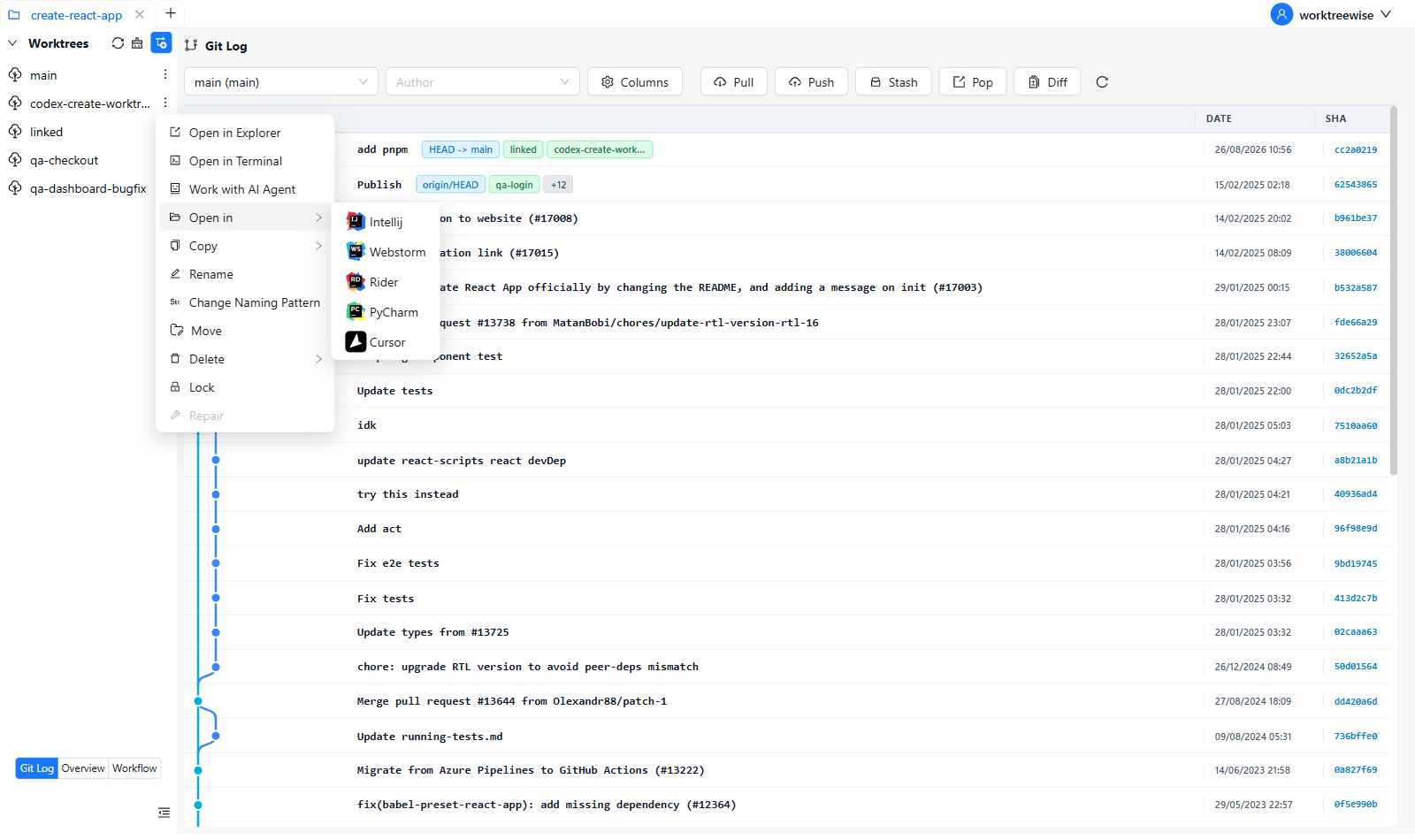
WorktreeWise eliminates the manual friction and mental overhead of CLI flags. It displays real-time branch states, uncommitted modifications, active terminals, and lock statuses across all worktrees on a single visual dashboard.
WorktreeWise Engineering Publication
Written and curated by the core WorktreeWise team. We build developer tools that turn Git worktrees, workflows, and parallel AI coding agents into second nature.