

Worktree missing after prune
TL;DR: The 30-Second Summary
If `git worktree prune` was run while an external drive or network folder was unmounted, Git deletes its metadata. When the drive is plugged back in, Git doesn't recognize it. Re-register the existing directory using `git worktree repair <path>`.
The Real-Life Scenario
“A developer stores worktrees on a high-speed external Thunderbolt SSD. While the drive was unplugged, a background maintenance script ran `git worktree prune`. Now when plugging the drive back in, Git acts as though the worktree doesn't exist.”
Accidental pruning happens when Git's prune command runs while physical storage is temporarily offline. Fortunately, pruning ONLY deletes administrative records in `.git/worktrees/`—it never deletes your actual source files or committed code on disk.
What Happens When an Active Worktree is Pruned
The directory on disk remains 100% intact, but `.git/worktrees/<id>` in the main repository has been deleted. Inside the worktree, `.git` points to a path that no longer exists.
What you see in the terminal:
$ cd /Volumes/FastSSD/feature-video
$ git status
fatal: not a git repository (or any of the parent directories): .gitUnder the Hood: Git Plumbing & Architecture
Because the source files and uncommitted changes still exist in the working directory, running `git worktree repair <path>` reconstructs the missing administrative folder inside `.git/worktrees/` and restores full connectivity.
Quick Command Recipes
Copy and adapt these commands directly in your terminal:
Re-register and repair pruned worktree
Reconstructs administrative metadata in the main repo for an existing worktree folder.
git worktree repair /path/to/existing-worktreeLock to prevent future accidental pruning
Ensures future `git worktree prune` runs will never prune this worktree.
git worktree lock --reason 'removable drive' /path/to/existing-worktreeStep-by-Step Practical Walkthrough
Follow these verified steps to safely resolve the issue and guarantee that your filesystem and Git references are in sync.
Ensure the storage drive is mounted and readable
Navigate to the worktree directory on your external drive.
ls -la /Volumes/FastSSD/feature-videodrwxr-xr-x src/ -rw-r--r-- .git -rw-r--r-- package.json
Run git worktree repair from the main repository
Switch to your primary repository and tell Git to repair the directory.
git worktree repair /Volumes/FastSSD/feature-videorepair worktree: /Volumes/FastSSD/feature-video
Confirm the worktree is restored
Verify that `git worktree list` displays the recovered directory and its branch.
git worktree list/repos/main 04e3a1f [main] /Volumes/FastSSD/feature-video 8d11ca2 [feature-video]
Lock the worktree for safety
Add a lock so future prune runs will protect it if the drive is unplugged.
git worktree lock --reason 'external drive' /Volumes/FastSSD/feature-videoEdge Cases & Advanced Scenarios
Older Git versions without `git worktree repair`
In Git versions older than 2.30, re-add the worktree using `git worktree add <path> <branch>` directly over the existing directory.
Common Mistakes to Avoid
❌ Mistake: Formatting or deleting the folder thinking the code was lost
Why it causes trouble: Irreversible data loss of all uncommitted work.
What to do instead: Your files on disk are completely intact—only Git's metadata was pruned.
Verification Checklist
- ✓`git status` inside the pruned folder runs cleanly without errors
- ✓All uncommitted edits and untracked files are preserved
Senior Engineering Tips
- ★Always lock worktrees located on external USB drives, NAS shares, or WSL mounted disks.
Key Takeaways
- 01.`git worktree prune` never touches your actual working tree files.
- 02.`git worktree repair <path>` restores pruned registrations in seconds.
- 03.Lock external worktrees to make them immune to prune scripts.
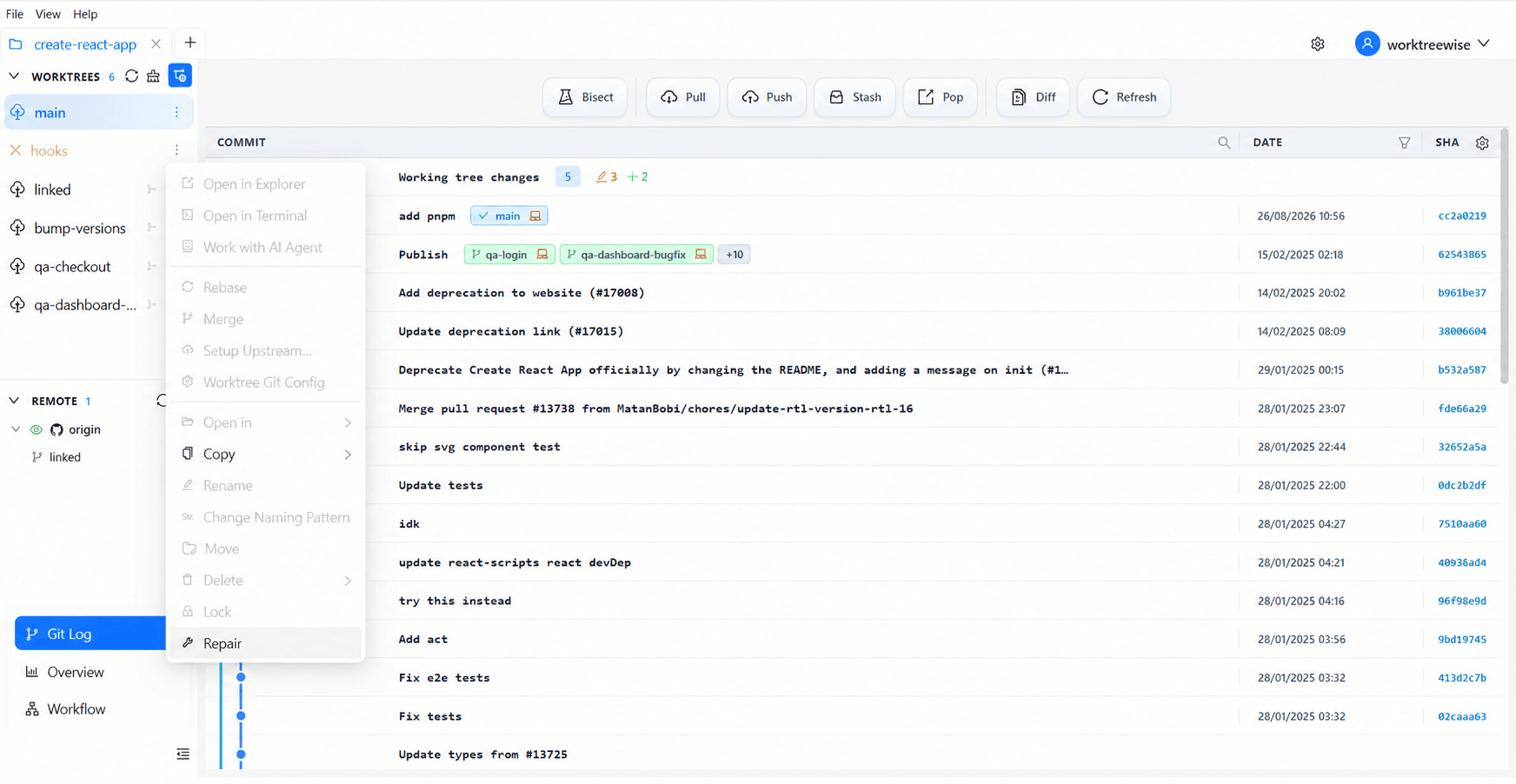
How WorktreeWise Solves This Visually
WorktreeWise eliminates the manual friction and mental overhead of CLI flags. It displays real-time branch states, uncommitted modifications, active terminals, and lock statuses across all worktrees on a single visual dashboard.
WorktreeWise Engineering Publication
Written and curated by the core WorktreeWise team. We build developer tools that turn Git worktrees, workflows, and parallel AI coding agents into second nature.