

Worktree was moved manually
TL;DR: The 30-Second Summary
Moving a worktree folder using File Explorer, Finder, or `mv` breaks the two-way link between the worktree's `.git` file and `.git/worktrees/<name>/gitdir`. Fix it instantly by running `git worktree repair <new-path>` from your main repository.
The Real-Life Scenario
“Lina tidies up her workspace by dragging `feature-search` into a new `archive/` subfolder. When she opens the folder in terminal, Git refuses to run commands: `fatal: not a git repository`. In the main repo, `git worktree list` reports the old path as missing.”
Git worktrees rely on a strict bidirectional pointer system. The worktree contains a `.git` file storing the absolute path to the main repository, while the main repository stores the absolute path to the worktree directory. If you move a worktree folder with your OS file manager, both paths break.
The Broken Two-Way Link
When a folder is moved without `git worktree move`, the worktree cannot find the main object store, and the main repo marks the worktree as missing or prunable.
What you see in the terminal:
$ cd /projects/archive/feature-search
$ git status
fatal: not a git repository (or any of the parent directories): .git

$ cd /projects/main
$ git worktree list
/projects/main             04e3a1f [main]
/projects/feature-search 7b19dc2 [feature-search] (prunable)Under the Hood: Git Plumbing & Architecture
Git 2.30 introduced `git worktree repair` specifically to fix this scenario. The repair command reads the worktree's `.git` file, computes the new relative or absolute path, and updates both `.git` and `.git/worktrees/<name>/gitdir` simultaneously.
Quick Command Recipes
Copy and adapt these commands directly in your terminal:
The correct way to move a worktree
Moves the directory on disk and updates all Git internal metadata pointers atomically.
git worktree move ../old-path ../new-pathFix after manual move
Re-links the moved worktree with the main repository.
git worktree repair ../archive/feature-searchStep-by-Step Practical Walkthrough
Follow these verified steps to safely resolve the issue and guarantee that your filesystem and Git references are in sync.
Navigate to the main repository
Always run the repair command from the primary checkout where the full `.git/` folder exists.
cd /projects/mainRun git worktree repair pointing to the new location
Pass the new path of the moved worktree to repair.
git worktree repair /projects/archive/feature-searchrepair worktree: /projects/archive/feature-search
Verify the new worktree path is recognized
Run `git worktree list` to confirm that the new path is active and no longer marked prunable.
git worktree list/projects/main 04e3a1f [main] /projects/archive/feature-search 7b19dc2 [feature-search]
Test Git commands inside the moved directory
Confirm that git status and git log work smoothly inside the moved folder.
git -C /projects/archive/feature-search statusOn branch feature-search nothing to commit, working tree clean
Edge Cases & Advanced Scenarios
Both the main repo AND the worktree were moved
If you moved the entire parent folder containing both directories, run `git worktree repair` inside the main repo without arguments to re-link all sibling worktrees.
git worktree repairCommon Mistakes to Avoid
❌ Mistake: Running `git worktree prune` before repairing the moved folder
Why it causes trouble: Prune deletes the administrative metadata, severing the link permanently.
What to do instead: Always run `git worktree repair` BEFORE running `git worktree prune`.
Verification Checklist
- ✓`git worktree list` shows the new folder path without `(prunable)` tags
- ✓`cat /new-path/.git` points to the valid `.git/worktrees/<id>` path
Senior Engineering Tips
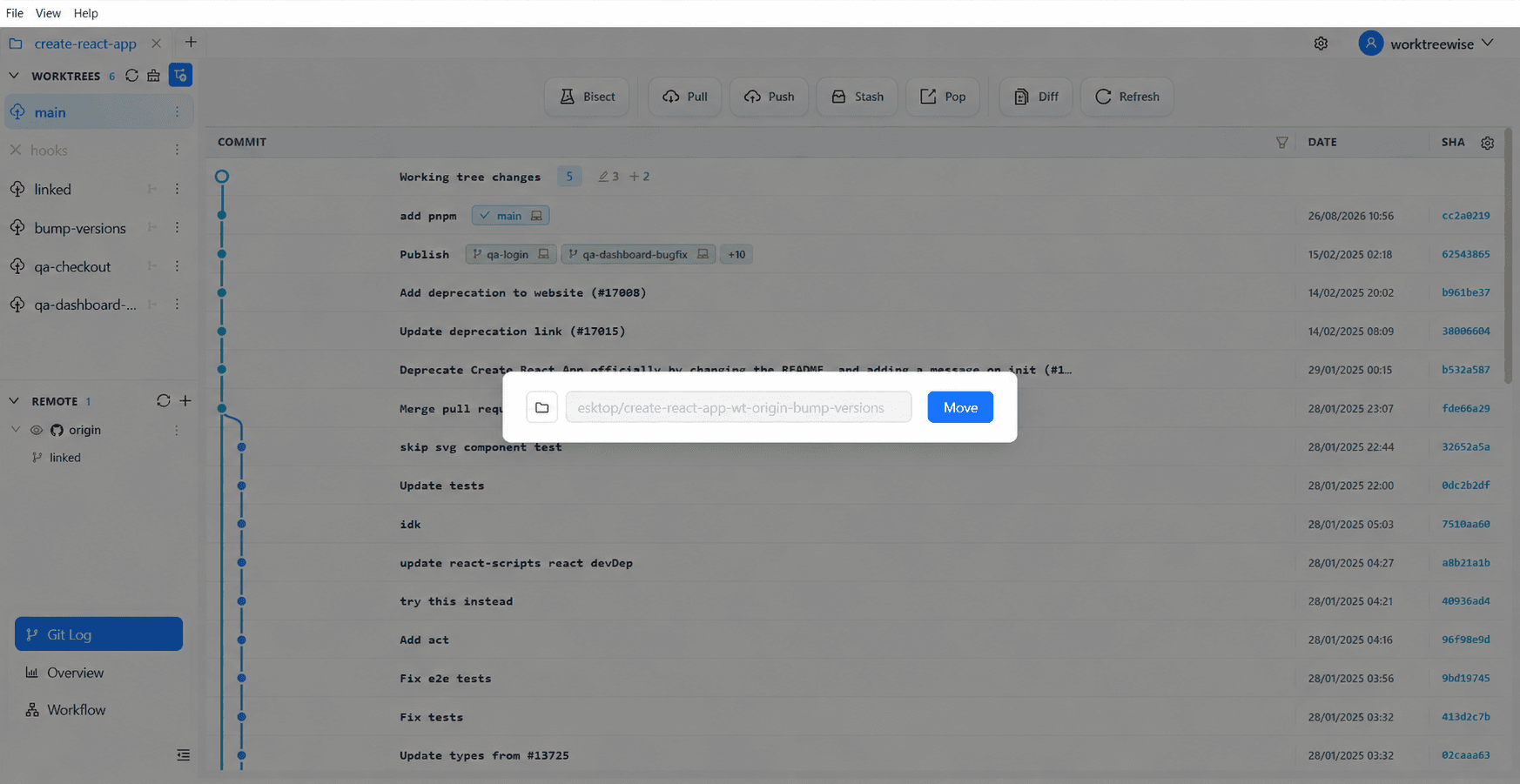
- ★In WorktreeWise, you can simply rename or relocate worktrees through the UI, and all Git pointers are updated automatically without manual terminal repairs.
Key Takeaways
- 01.Manual directory moves break Git's two-way pointer system.
- 02.Use `git worktree move` whenever possible.
- 03.If you already moved it manually, run `git worktree repair <new-path>` to fix it in one second.
How WorktreeWise Solves This Visually
WorktreeWise eliminates the manual friction and mental overhead of CLI flags. It displays real-time branch states, uncommitted modifications, active terminals, and lock statuses across all worktrees on a single visual dashboard.
WorktreeWise Engineering Publication
Written and curated by the core WorktreeWise team. We build developer tools that turn Git worktrees, workflows, and parallel AI coding agents into second nature.