

Worktree path is invalid
TL;DR: The 30-Second Summary
Invalid worktree path errors occur when directory paths contain unsupported characters, exceed OS path length limitations (MAX_PATH on Windows), or conflict with existing files. Use `git worktree move` or configure `core.longpaths true`.
The Real-Life Scenario
“On a Windows workstation with deeply nested monorepo folder hierarchies, creating a worktree fails with `fatal: could not create worktree: Invalid path`. The destination path exceeds Windows' 260-character limit.”
Path validation in Git is governed by operating system constraints, filesystem capabilities, and Git's internal sanitization rules. Understanding how paths are validated prevents frustrating checkout failures across multi-platform teams.
Root Causes of Invalid Worktree Paths
Invalid path errors arise from three main causes: exceeding OS path length limits, using illegal filesystem characters (such as `:`, `?`, `*` on Windows), or targeting a directory that already contains non-empty files.
What you see in the terminal:
$ git worktree add ../feature:auth feature/auth
fatal: 'feature:auth' is not a valid path

$ git worktree add C:\Very\Deep\Path...
fatal: could not create worktree: Path too longUnder the Hood: Git Plumbing & Architecture
Git checks paths using platform-specific filesystem APIs (`CreateFileW` on Windows, `open()` on POSIX). By default on Windows, paths longer than 260 characters trigger `ERROR_PATH_NOT_FOUND` unless Git's long-path support is explicitly enabled.
Quick Command Recipes
Copy and adapt these commands directly in your terminal:
Enable long path support on Windows
Allows Git to bypass the legacy 260-character MAX_PATH limit on Windows 10/11.
git config --system core.longpaths trueMove an existing worktree to a valid short path
Safely relocates the worktree and updates all Git internal pointers.
git worktree move ../bad-path ../wt-authStep-by-Step Practical Walkthrough
Follow these verified steps to safely resolve the issue and guarantee that your filesystem and Git references are in sync.
Sanitize the target directory name
Avoid special characters (`:`, `*`, `?`, `"`, `<`, `>`, `|`) and spaces in directory names.
git worktree add ../wt-auth feature/authPreparing worktree (checking out 'feature/auth')
Relocate deeply nested paths
Place your worktree sibling directories close to the root drive (e.g. `C:\dev\wt-auth` instead of deep user directories).
git worktree add C:/dev/wt-auth feature/authRepair if the folder was already moved
If you renamed a folder manually to fix its name, run repair.
git worktree repair C:/dev/wt-authrepair worktree: C:/dev/wt-auth
Edge Cases & Advanced Scenarios
Case sensitivity differences (macOS/Windows vs Linux)
Creating `wt-auth` and `WT-AUTH` works on Linux but collides on default macOS and Windows filesystems.
git config core.ignorecase trueCommon Mistakes to Avoid
❌ Mistake: Creating worktrees inside the primary working tree directory
Why it causes trouble: The nested worktree appears as an untracked directory in the parent repo, causing nested git status chaos.
What to do instead: Always create worktrees as sibling directories (`../worktree-name`) or in a dedicated parallel folder.
Verification Checklist
- ✓The path contains only alphanumeric characters, dashes, and underscores
- ✓Path length is under 200 characters or `core.longpaths` is enabled
Senior Engineering Tips
- ★Establish a consistent workspace layout such as `~/projects/<repo>-worktrees/<branch>` to keep paths clean and organized.
Key Takeaways
- 01.Keep worktree directories as siblings of the main repository.
- 02.Enable `git config core.longpaths true` on Windows machines.
- 03.Never nest worktree directories inside another working tree.
How WorktreeWise Solves This Visually
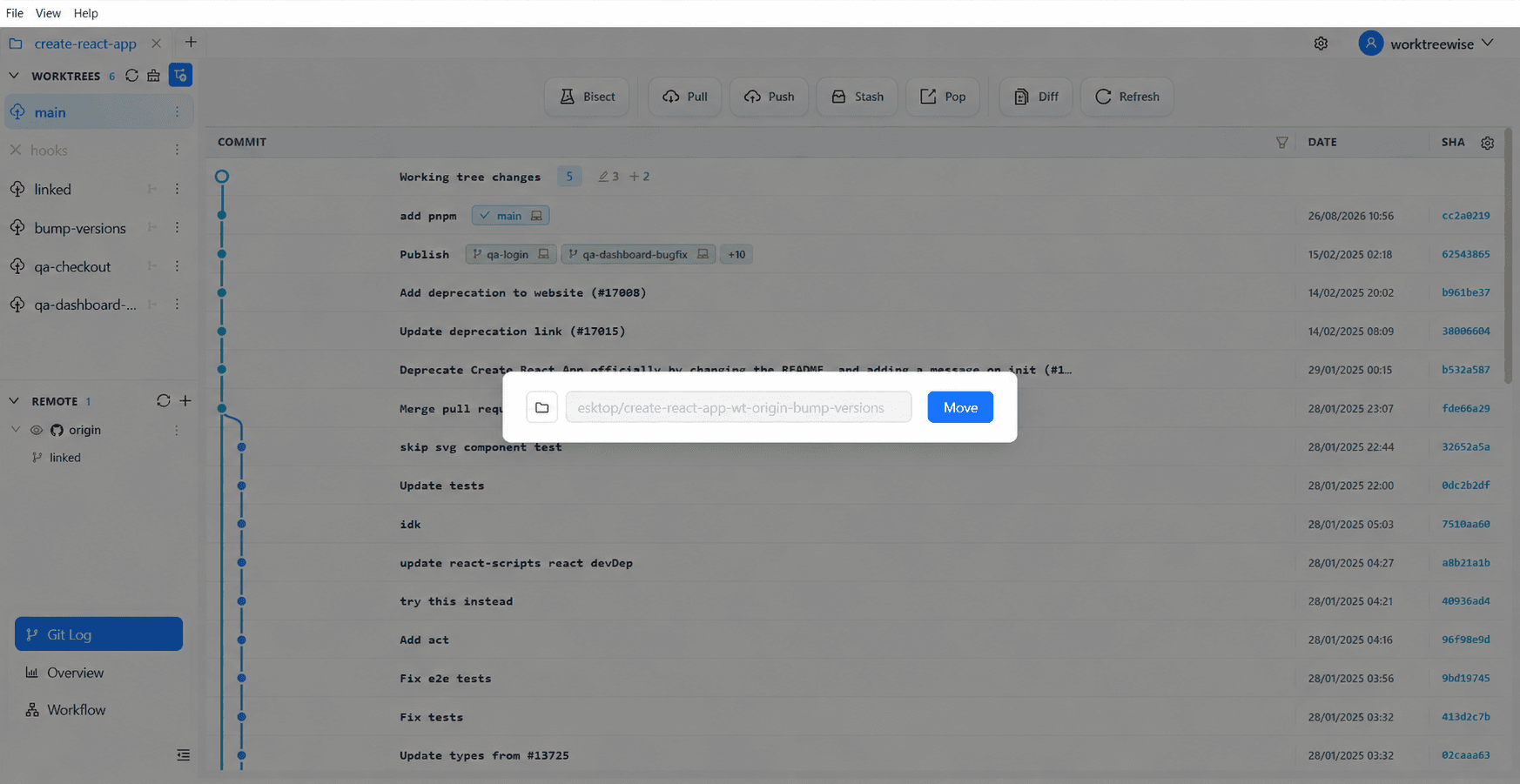
WorktreeWise eliminates the manual friction and mental overhead of CLI flags. It displays real-time branch states, uncommitted modifications, active terminals, and lock statuses across all worktrees on a single visual dashboard.
WorktreeWise Engineering Publication
Written and curated by the core WorktreeWise team. We build developer tools that turn Git worktrees, workflows, and parallel AI coding agents into second nature.