

Sparse checkout per worktree
TL;DR: The 30-Second Summary
Combine `git worktree add` with `git sparse-checkout` to check out only the specific subdirectories you need in a secondary worktree. This saves gigabytes of disk space and keeps IDE indexing lightning-fast in massive monorepos.
The Real-Life Scenario
“An engineer needs to update a mobile component in a 50GB monorepo containing web, backend, and documentation folders. Using sparse checkout in a worktree, she checks out only `apps/mobile` (300MB), skipping the remaining 49.7GB of files.”
In massive enterprise monorepos, checking out the entire repository in multiple worktrees consumes immense disk space and overwhelms editor indexers. By pairing Git worktrees with sparse checkout, you get parallel branches with only the files you actually care about.
Monorepo Bloat in Parallel Worktrees
Checking out 5 worktrees in a 20GB monorepo consumes 100GB of disk and forces your IDE to index 500,000 files simultaneously.
What you see in the terminal:
Cloning all 50,000 files across 5 worktrees = 100GB disk space, 100% CPU indexingUnder the Hood: Git Plumbing & Architecture
Sparse checkout instructs Git's index to populate only paths that match patterns in `.git/worktrees/<name>/info/sparse-checkout`, leaving all other files unmaterialized on disk.
Quick Command Recipes
Copy and adapt these commands directly in your terminal:
Create worktree with sparse checkout
Creates worktree and checks out only `apps/mobile` and `libs/ui` folders.
git worktree add --no-checkout ../wt-mobile -b feat/mobile main
cd ../wt-mobile
git sparse-checkout set apps/mobile libs/ui
git checkout
Inspect active sparse checkout paths
Displays which directories are currently materialized in this worktree.
git sparse-checkout listStep-by-Step Practical Walkthrough
Follow these verified steps to safely resolve the issue and guarantee that your filesystem and Git references are in sync.
Create worktree without checking out files
Creates the worktree skeleton.
git worktree add --no-checkout ../wt-docs -b feat/docs mainInitialize sparse checkout in cone mode
Enables high-performance cone pattern matching.
cd ../wt-docs && git sparse-checkout init --coneDefine desired folders
Select only the documentation and website directories.
git sparse-checkout set docs websiteCheckout files
Materializes only the selected 1,420 files instead of the full 50,000.
git checkoutUpdating files: 100% (1,420/1,420), done.
Edge Cases & Advanced Scenarios
Root files (package.json, tsconfig.json)
In cone mode, Git automatically includes all files in the root directory so build configs remain accessible.
Common Mistakes to Avoid
❌ Mistake: Running `git sparse-checkout disable` in a worktree
Why it causes trouble: Immediately checks out all 50,000 files, filling the disk.
What to do instead: Use `git sparse-checkout add <dir>` to expand paths incrementally.
Verification Checklist
- ✓Only selected directories appear on disk
- ✓`git sparse-checkout list` matches required folders
Senior Engineering Tips
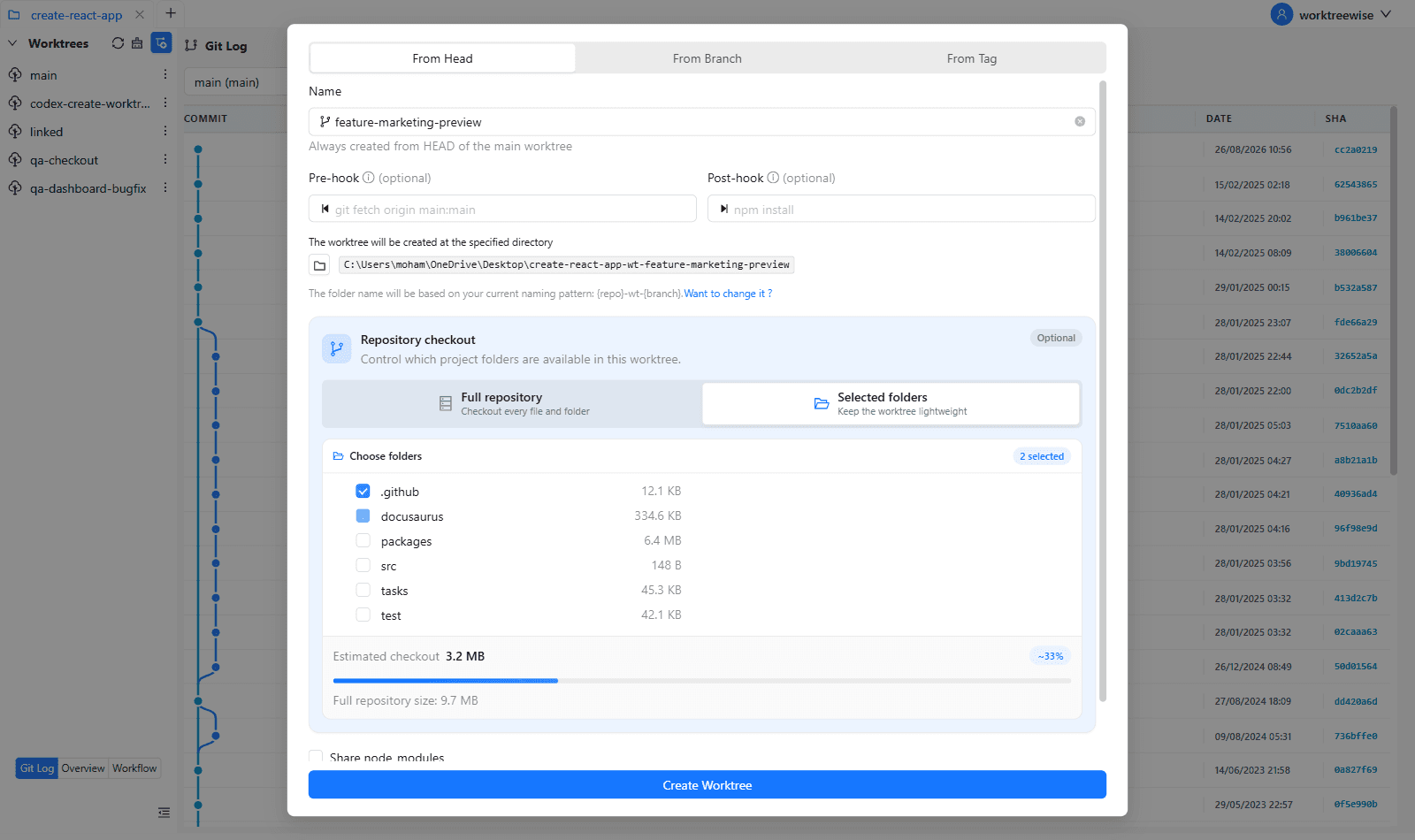
- ★WorktreeWise includes a graphical Sparse Checkout selector during worktree creation so you can choose which folders to include with checkboxes.
Key Takeaways
- 01.Pairing worktrees with sparse checkout solves monorepo bloat.
- 02.Use `git worktree add --no-checkout` before configuring sparse paths.
- 03.Cone mode provides the fastest path matching performance.
How WorktreeWise Solves This Visually
WorktreeWise eliminates the manual friction and mental overhead of CLI flags. It displays real-time branch states, uncommitted modifications, active terminals, and lock statuses across all worktrees on a single visual dashboard.
WorktreeWise Engineering Publication
Written and curated by the core WorktreeWise team. We build developer tools that turn Git worktrees, workflows, and parallel AI coding agents into second nature.