

Docker Compose with worktrees
TL;DR: The 30-Second Summary
By default, Docker Compose uses the project directory name as its project name, causing sibling worktrees to overwrite each other's networks and volumes. Set `COMPOSE_PROJECT_NAME` per worktree to achieve 100% isolated Compose stacks.
The Real-Life Scenario
“A microservices project uses `docker compose up -d` to spin up PostgreSQL, Redis, and API containers. When running Compose in a second worktree, Docker Compose recreates and destroys the containers from the first worktree!”
Docker Compose is the standard tool for multi-container local environments. When combined with Git worktrees, you can run multiple complete application stacks in parallel. However, understanding how Compose names projects, networks, and volumes is essential to prevent destructive collisions.
How Docker Compose Determines Project Names
If two worktrees are named similarly or if `COMPOSE_PROJECT_NAME` is not set, Compose treats them as the same application and recreates existing containers.
What you see in the terminal:
$ cd ../worktree-b && docker compose up -d
Recreating worktree-db_1 ... done
Recreating worktree-api_1 ... done
[Worktree A] Connection to database lost!Under the Hood: Git Plumbing & Architecture
Compose uses the project name to prefix all containers (`<project>_<service>_1`), volumes (`<project>_<data>`), and networks (`<project>_default`). If two worktrees share the same project name, their volumes and networks collide.
Quick Command Recipes
Copy and adapt these commands directly in your terminal:
Isolate Compose project via env variable
Prefixes all containers, networks, and volumes with `wt-feat-billing`.
COMPOSE_PROJECT_NAME=wt-feat-billing docker compose up -dSpecify dedicated .env file with Compose
Loads worktree-specific port and project name variables cleanly.
docker compose --env-file .env.worktree up -dStep-by-Step Practical Walkthrough
Follow these verified steps to safely resolve the issue and guarantee that your filesystem and Git references are in sync.
Define dynamic project name in `.env`
Add `COMPOSE_PROJECT_NAME=app-feat-search` to the worktree's `.env` file.
Parameterize external ports in `docker-compose.yml`
Use `${APP_PORT:-3000}:3000` and `${DB_PORT:-5432}:5432` in your compose file.
Launch the stack
Start the multi-container stack in detached mode.
docker compose up -dCreating network app-feat-search_default Creating app-feat-search_db_1 ... done
Verify stack isolation
Check running Compose projects across worktrees.
docker compose lsNAME STATUS CONFIG FILES app-main running docker-compose.yml app-feat-search running docker-compose.yml
Edge Cases & Advanced Scenarios
Disk space from multiple database volumes
Multiple Compose stacks create multiple Docker volumes. Run `docker volume prune` periodically during maintenance.
Common Mistakes to Avoid
❌ Mistake: Hardcoding host ports like `5432:5432` in `docker-compose.yml`
Why it causes trouble: The second worktree cannot bind to 5432 and fails to start.
What to do instead: Always use environment variables for host ports (`${DB_PORT:-5432}:5432`).
Verification Checklist
- ✓`docker compose ls` shows separate project entries for each worktree
- ✓Each worktree interacts strictly with its own database and services
Senior Engineering Tips
- ★WorktreeWise can automatically inject `COMPOSE_PROJECT_NAME=${worktree.name}` into terminal sessions.
Key Takeaways
- 01.Always set `COMPOSE_PROJECT_NAME` for each worktree.
- 02.Parameterize host port mappings in `docker-compose.yml`.
- 03.Enjoy fully isolated multi-container stacks running side by side.
How WorktreeWise Solves This Visually
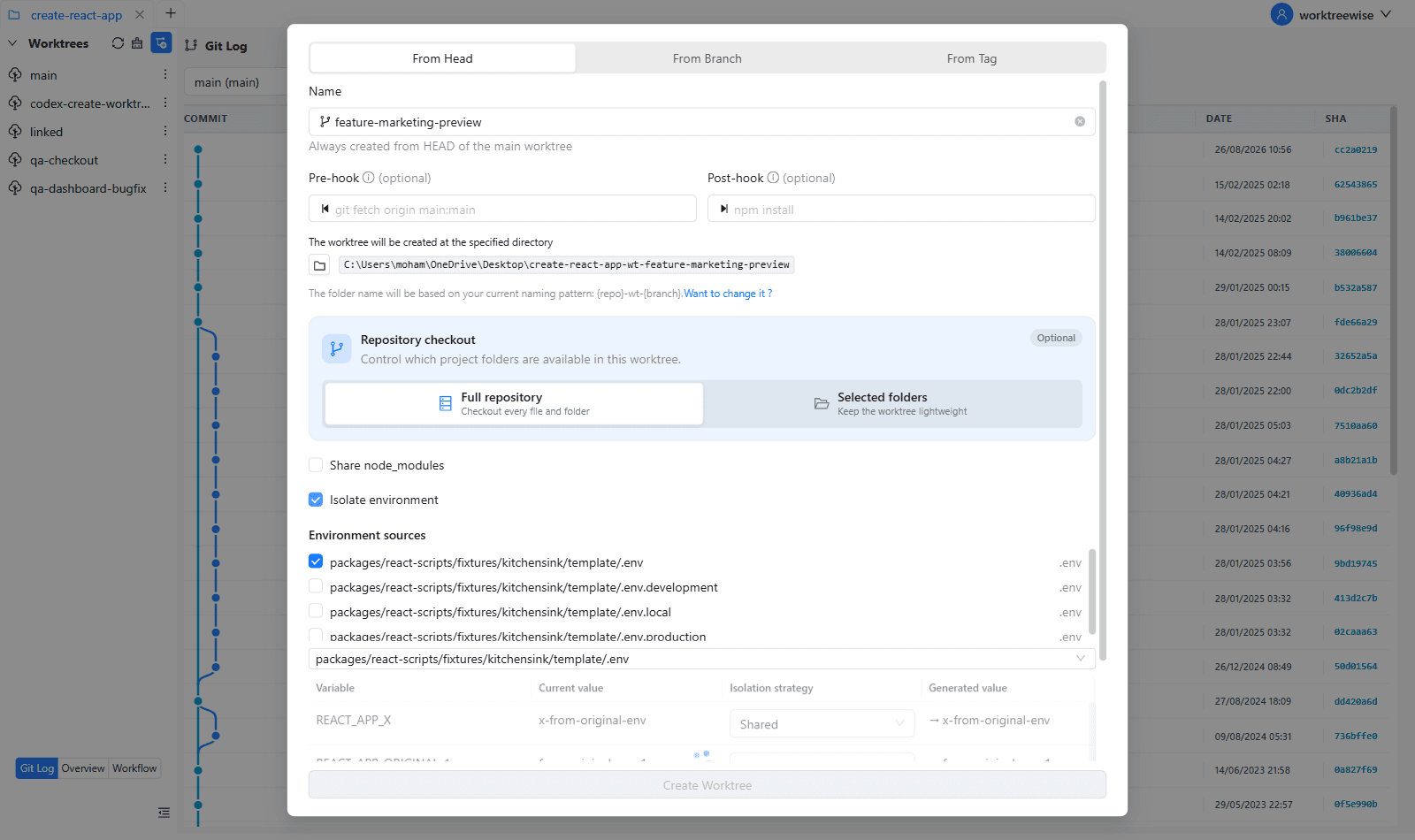
WorktreeWise eliminates the manual friction and mental overhead of CLI flags. It displays real-time branch states, uncommitted modifications, active terminals, and lock statuses across all worktrees on a single visual dashboard.
WorktreeWise Engineering Publication
Written and curated by the core WorktreeWise team. We build developer tools that turn Git worktrees, workflows, and parallel AI coding agents into second nature.