

Cursor + worktrees
TL;DR: The 30-Second Summary
Running multiple Cursor windows on the same project using Git worktrees allows you to run Cursor Composer or Agent mode on a secondary feature branch while actively writing code in your primary window—with zero file collisions or indexing conflicts.
The Real-Life Scenario
“Marco uses Cursor's Agent mode to rebuild a complex search modal. While Cursor is analyzing the codebase and making multi-file edits, Marco needs to continue working on payment webhooks. Opening a second Cursor window on a separate worktree lets both workflows run in parallel.”
Cursor is one of the most powerful AI-first code editors available today. Its multi-file Composer and Agent capabilities can inspect and refactor dozens of files simultaneously. By leveraging Git worktrees, you can open multiple independent Cursor windows on different branches of the same repository without any file contention.
Why Multiple Cursor Windows Need Separate Worktrees
If you open two Cursor windows pointing to the same folder on disk, both windows share the same files and the same Git branch. When Cursor's Agent writes changes in window A, window B immediately reloads the file from disk, clobbering whatever you were actively typing.
What you see in the terminal:
[Cursor Agent] Modifying src/components/SearchModal.tsx...
[Editor] The file 'SearchModal.tsx' on disk is newer than the editor buffer. Overwrite?Under the Hood: Git Plumbing & Architecture
Cursor maintains a local vector index and SQLite database inside `.cursor/` or `~/.config/Cursor/User/workspaceStorage/`. By opening distinct filesystem paths via Git worktrees, Cursor creates separate workspace storage IDs, giving each window its own isolated file watcher, language server daemon, and agent context.
Quick Command Recipes
Copy and adapt these commands directly in your terminal:
Create a worktree for Cursor AI
Prepares a separate folder and branch for Cursor Agent mode.
git worktree add ../ui-search-agent -b feat/cursor-search mainLaunch Cursor on the new worktree
Spawns a new independent Cursor window attached to the worktree.
cursor ../ui-search-agentStep-by-Step Practical Walkthrough
Follow these verified steps to safely resolve the issue and guarantee that your filesystem and Git references are in sync.
Create the secondary worktree
Set up the destination directory next to your project root.
git worktree add ../cursor-task -b feat/ai-task mainLaunch Cursor in the new directory
A completely new Cursor instance opens with its own terminal and workspace state.
cursor ../cursor-taskEngage Cursor Composer or Agent mode
Prompt Cursor to perform the heavy refactoring in window #2 while you work peacefully in window #1.
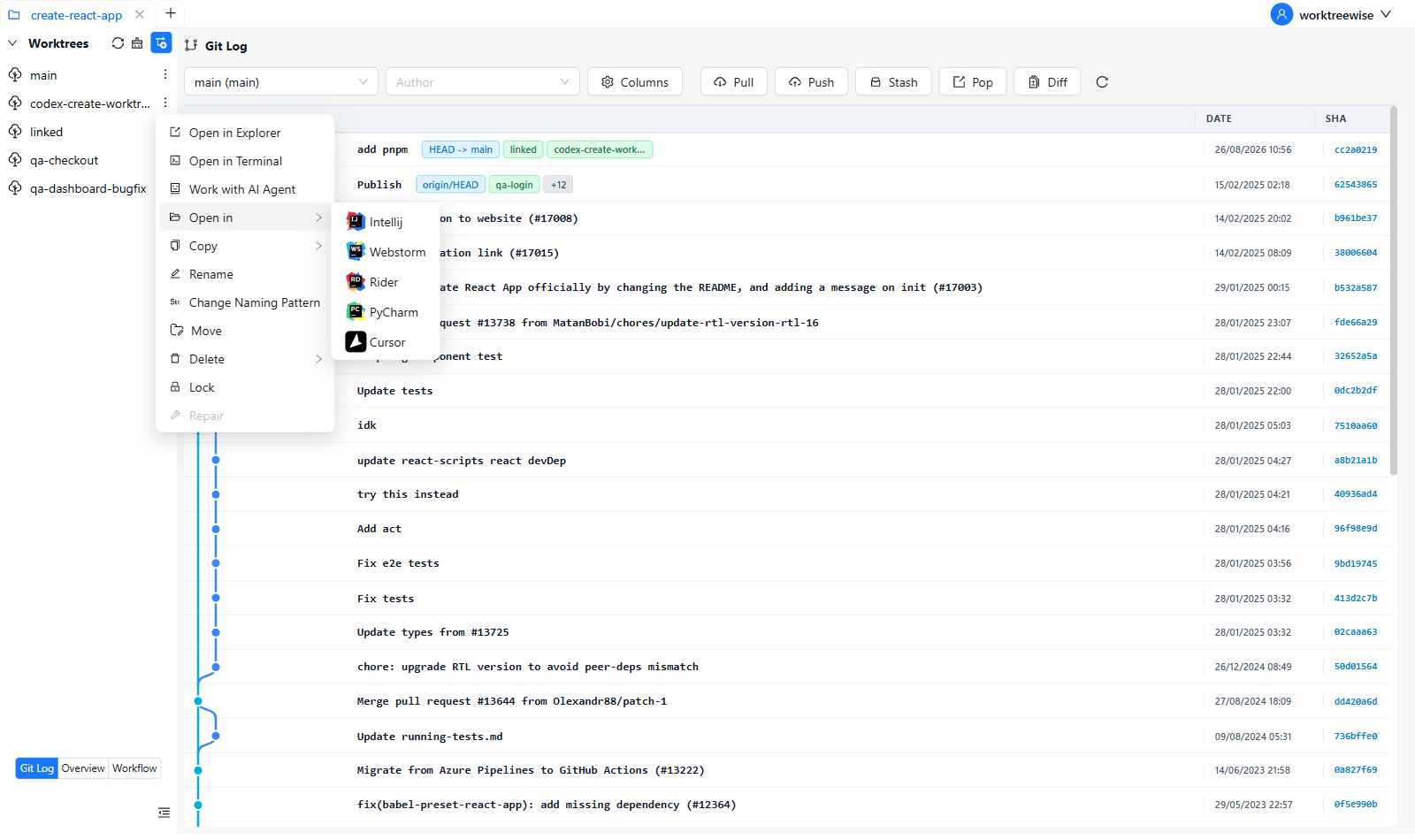
Review changes visually in WorktreeWise
Open WorktreeWise to view side-by-side diffs of Cursor's work across both active branches.
Edge Cases & Advanced Scenarios
Configuring per-worktree .cursorrules
You can customize `.cursorrules` in each worktree to give different instructions to Cursor for frontend vs backend tasks.
Common Mistakes to Avoid
❌ Mistake: Switching branches in Cursor while Agent mode is running
Why it causes trouble: Agent mode loses context and may write changes to the wrong branch.
What to do instead: Keep each Cursor window pinned to its dedicated worktree branch.
Verification Checklist
- ✓Each Cursor window displays a distinct branch name in the bottom status bar
- ✓Language servers in both windows run independently without port collisions
Senior Engineering Tips
- ★In WorktreeWise Settings -> Editors, configure Cursor as your default editor to open any worktree in Cursor with a single click or keyboard shortcut.
Key Takeaways
- 01.Each Cursor window needs its own filesystem path to avoid buffer collisions.
- 02.Worktrees allow Cursor Agent mode to run in the background while you code.
- 03.WorktreeWise lets you launch Cursor directly into any worktree instantly.
How WorktreeWise Solves This Visually
WorktreeWise eliminates the manual friction and mental overhead of CLI flags. It displays real-time branch states, uncommitted modifications, active terminals, and lock statuses across all worktrees on a single visual dashboard.
WorktreeWise Engineering Publication
Written and curated by the core WorktreeWise team. We build developer tools that turn Git worktrees, workflows, and parallel AI coding agents into second nature.